Author Archives: Ezra Kenigsberg

Unknown's avatar

About Ezra Kenigsberg

#Salesforce architecture/data guru & @BigCommerce employee; film noir buff; expatriate Jewish New Yorker; proud papa

Why Is My SOQL Query Running So Slowly?

Q: Why is my SOQL query running so slowly?

A: If you have any of the following things in your query, Salesforce’s query optimizer can’t leverage indexed fields:

  • !=
  • NOT LIKE
  • EXCLUDES
  • [TEXTFIELD] >
  • [TEXTFIELD] <
  • [TEXTFIELD] >=
  • [TEXTFIELD] <=
  • LIKE '%[string]'
  • cross-object formula fields

or, as the Salesforcies put it:

Full Query & Search Optimization Cheat Sheet is here!

Apple Watch Compulsion #2

Q: How do I make my Apple Watch send sound to my earphones by default instead of my iPhone?

A: Heck if I know.1 But I have got an okayish workaround:

  1. create earphone-connecting shortcut(s) for your Apple Watch, and
  2. add those shortcuts as complications to the watch face of your choice.

I have two pairs of Shokz earphones, so I created one shortcut for each.

(For grins, I also created a “Low Power” shortcut to turn off Cellular, WiFi, and Bluetooth all at once.)

Step-by-step, here’s what I did.

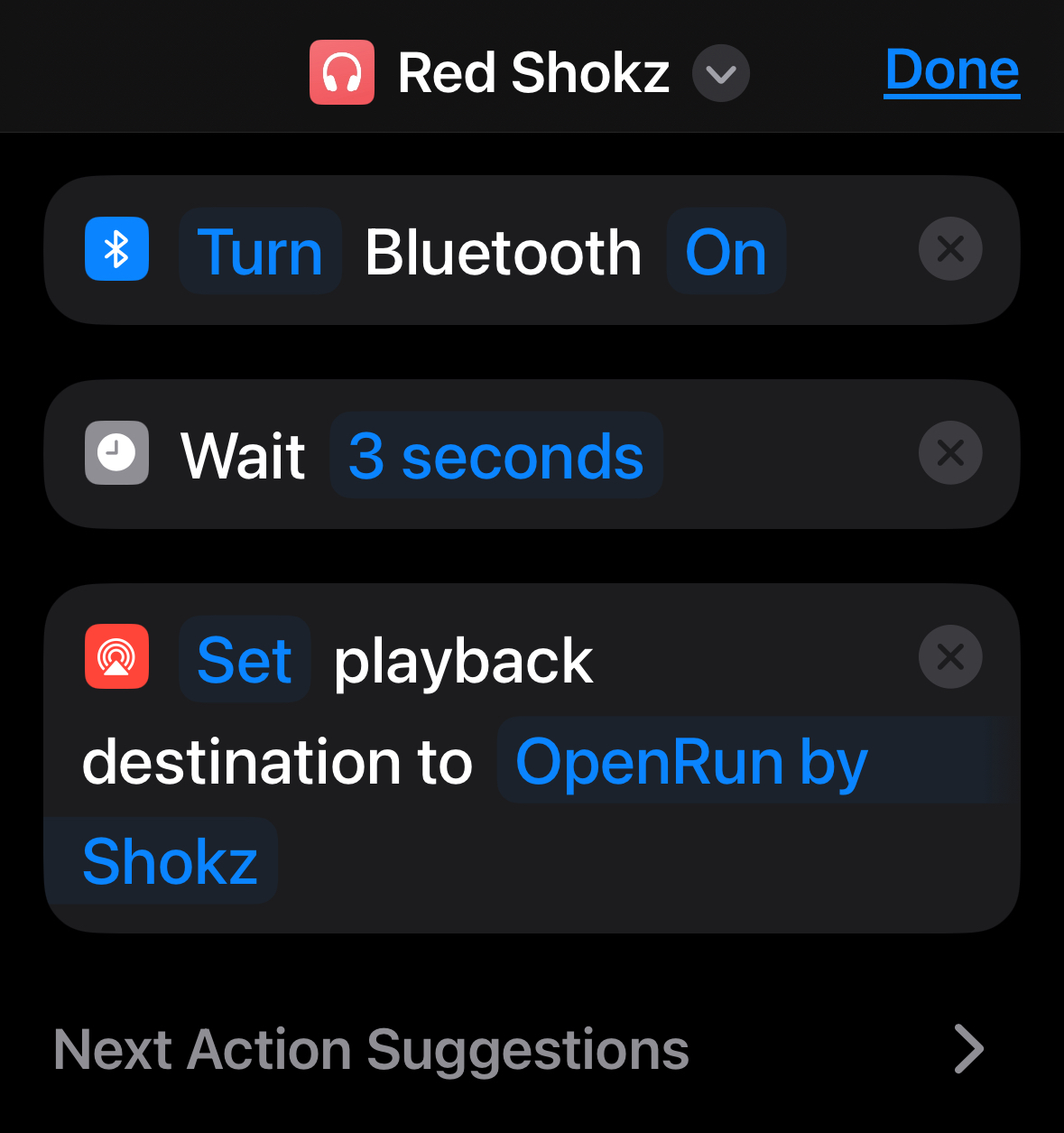
1] In Apple’s Shortcuts app on your iPhone or iPad, create a new Shortcut with three actions:

Quick notes:

  • for some reason, you gotta do this on an iOS device (eg, an iPhone or an iPad). Try to do it in MacOS (eg, on a MacBook) and the Shortcuts app won’t let you create the “Set playback destination” step ¯\_(ツ)_/¯
  • customize the third step’s device as needed
  • make sure to bring up the “Details” screen for the shortcut (by touching the ⓘ icon) and activate the “Show on Apple Watch” switch

2] Edit the desired watch face, choose a complication slot, choose the Shortcuts app, and finally select the specific shortcut(s) you created in step 1.

Helpfullest two notes here:

That’s it! The earphone-handoff between iPhone and Watch still isn’t perfect, but it’s better.

Oh: and I installed additional actions for the Shortcuts app. I’m quite psyched to try out some of these 121 (!) new actions.


  1. 90% of the times I tell my Apple Watch to play music or a podcast to my earphones, the sound comes out of my iPhone’s speaker instead.

    Which has me fascinated: which Apple designer decided we’d want to use the Watch to control the iPhone’s speaker?

    I have never, ever wanted to control the iPhone’s speaker from my Watch, and I’m hardpressed to imagine anyone ever asked for that. ↩︎

DemandTools: Am I Missing Something?

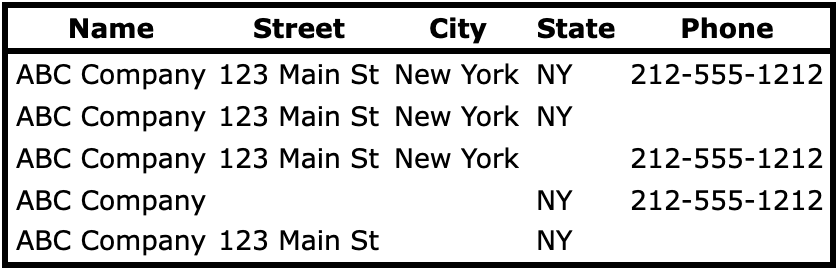
I thought DemandTools enabled merging records where you’re matching on fields like the following. No-brainer, right?

It doesn’t, unless you use a hide-your-eyes ugly workaround.

The details:

Look at how none of the dummy records above has the same blanks.

You’d think DemandTools’ “Blank Values” checkbox would handle those inconsistencies, yah? Wrong!

“Blank Values” enables this kind of match:

It does not enable this kind of match:

The fix for this is a goofy workaround which is marginally acceptable if you’re only matching on two fields, but gets exponentially worse with each additional matching field. Boo.

I’ve submitted this as a feature request on DemandTools’ site, but I’m astonished this isn’t out-of-the-box capability.

How did I sporadically use DemandTools for years before noticing this?

Adding Curved Text to a Canva Design

Q: How do I add curved text to a Canva Design?
A: The simple way:
0] select the text box
1] click the “Effects” button in the toolbar at the top of the screen
2] select “Curve” from the left-hand “Effects” palette
3] customize how many degrees the text should cover using the “Curve” slider

The fancy way: install TypeCraft. It gives you more customizable control over text options, but strikes me as overkill 80% of the time.

Starting to Dig into Canva URLs

So I see that there’s some promise in messing with Canva URLs–the typical URL when editing a Canva preso appears to look like this:

https://www.canva.com/design/[11CharDesignID]/[22CharSessionID]/edit

which, if you want to send to someone, can be simplified to

https://www.canva.com/design/[11CharDesignID]

If you want to send a link to a particular page, right-click (or Control-click on a Mac) a page in the “Pages” tray at the bottom of the screen and choose “Copy link to this page”:

. . . that gives you a URL that looks like

https://www.canva.com/design/[11CharPresoID]/[22CharSessionID]/edit?ui=[18CharSlideID]

which can be simplified and sent to someone else as

https://www.canva.com/design/[11CharPresoID]?ui=[18CharSlideID]

[edit: this trick appears to work for Canva presentations, but not Canva docs.]

Divorce Google! Part 1

Quick question! Would you rather

A] navigate the internet, or

B] navigate the internet and give your valuable personal information to Google?

Because if you’re using Chrome, you’ve already chosen option B.


Switching to option A is pretty easy: install Brave and use it instead of Chrome.

  • Brave is built on the same foundational open-source code that Chrome is built on.
  • You can use the exact same extensions in both browsers.
  • But Brave doesn’t send gobs of your valuable personal data back to Google.

More anti-Google tirades (paranoia?) to come. Props to “Restore Privacy”.


All chapters of “Divorce Google”:

After-Save Flow Triggers Are Bad. Tell Me I’m Wrong.

I think Salesforce is downplaying that After-Save Flow Triggers are bad. Am I wrong?

Salesforce’s Architecture Decision Guide on Triggers argues that

  • we should move all our automation to “no-code” Flows or “pro-code” Apex
  • because Workflow and Process Builder are being retired.

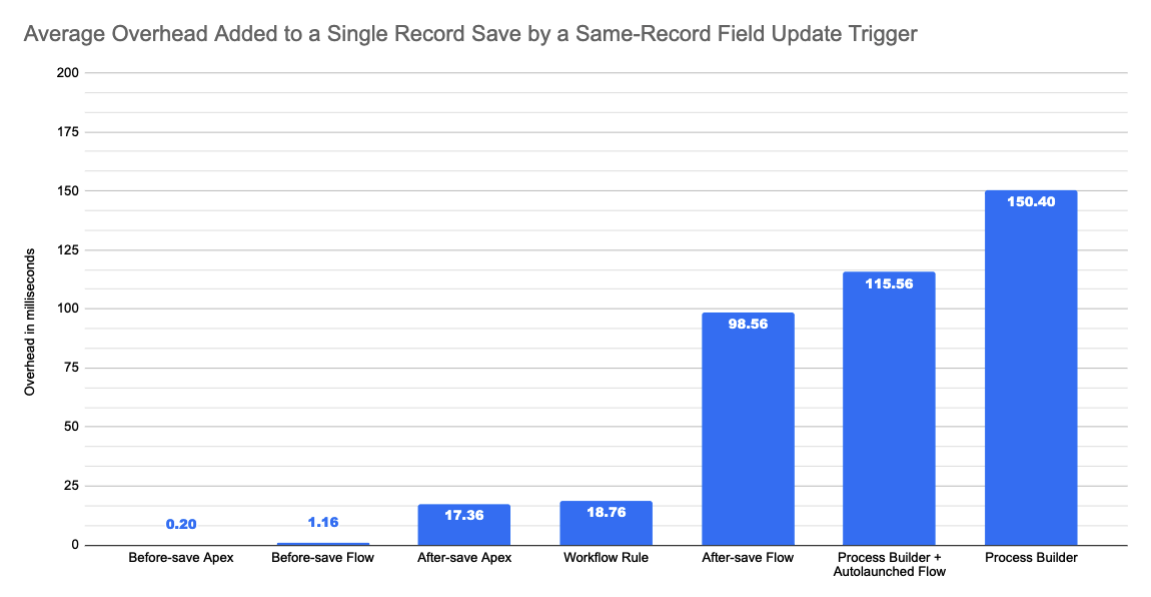
But but but. In the weeds of the article, there’s a comparison of different automations:

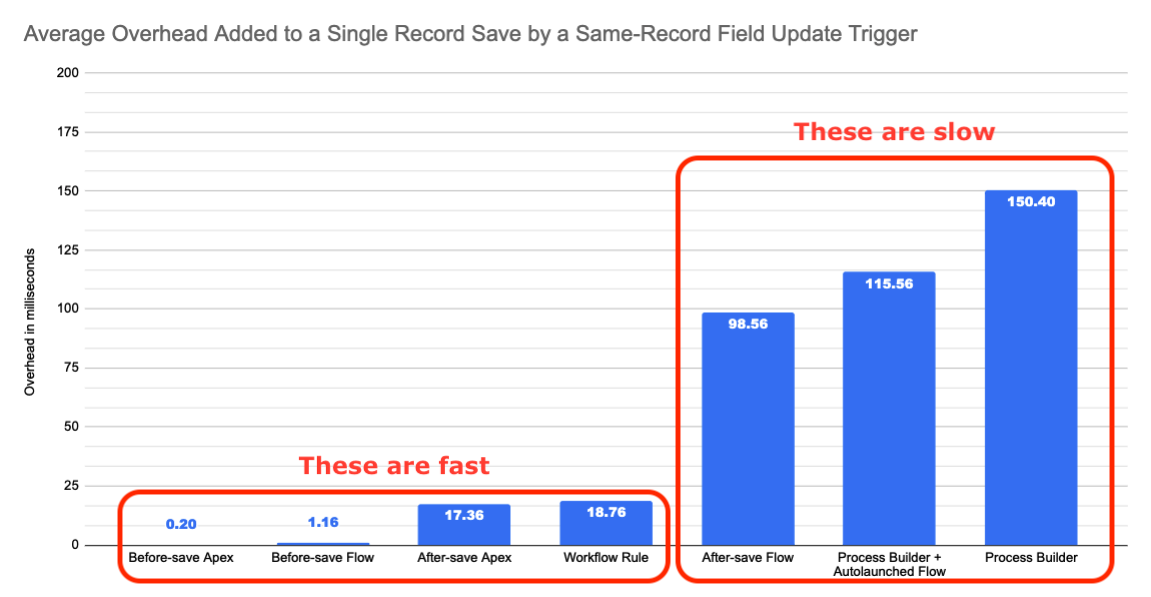
I read that comparison like this:

. . . and that imo puts After-Save Flow Triggers in the Process Builder camp of slow, bad automation.

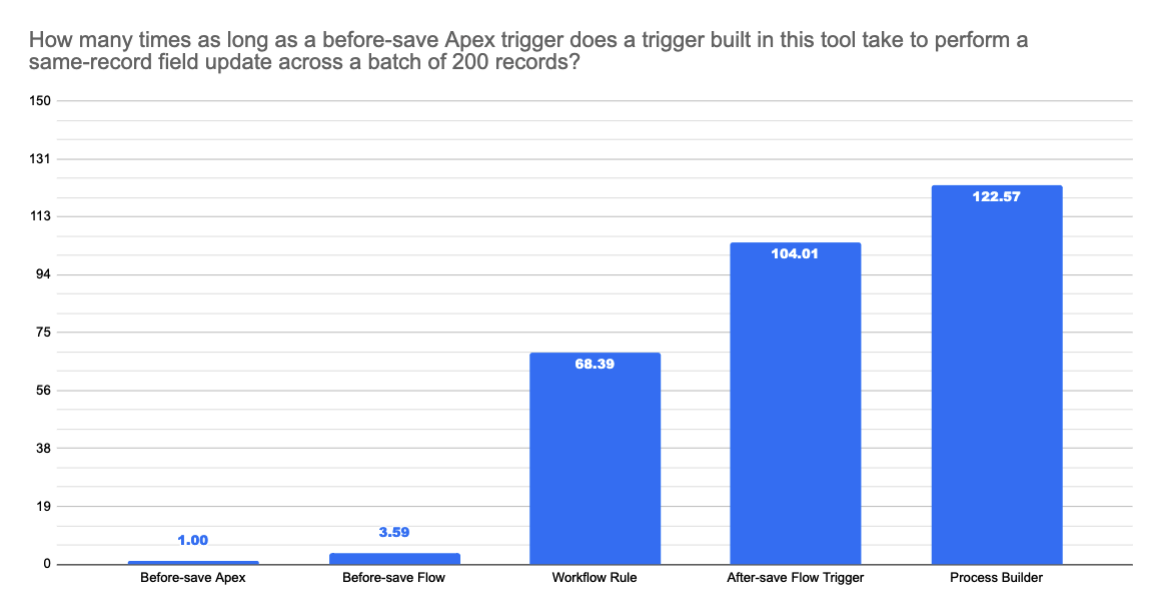
Diving a little deeper, there’s a second experiment and graph:

Edward Tufte would deride this for looking like the previous chart, but measuring something very different: multiples instead of milliseconds.

In any case, the upshot is similar: After-Save Flow Triggers again fall into the “bad” side:

Thanks to Melissa Shepard for bringing my attention to it!

Formula Challenge! Pull a Value out of a Comma-Separated Field

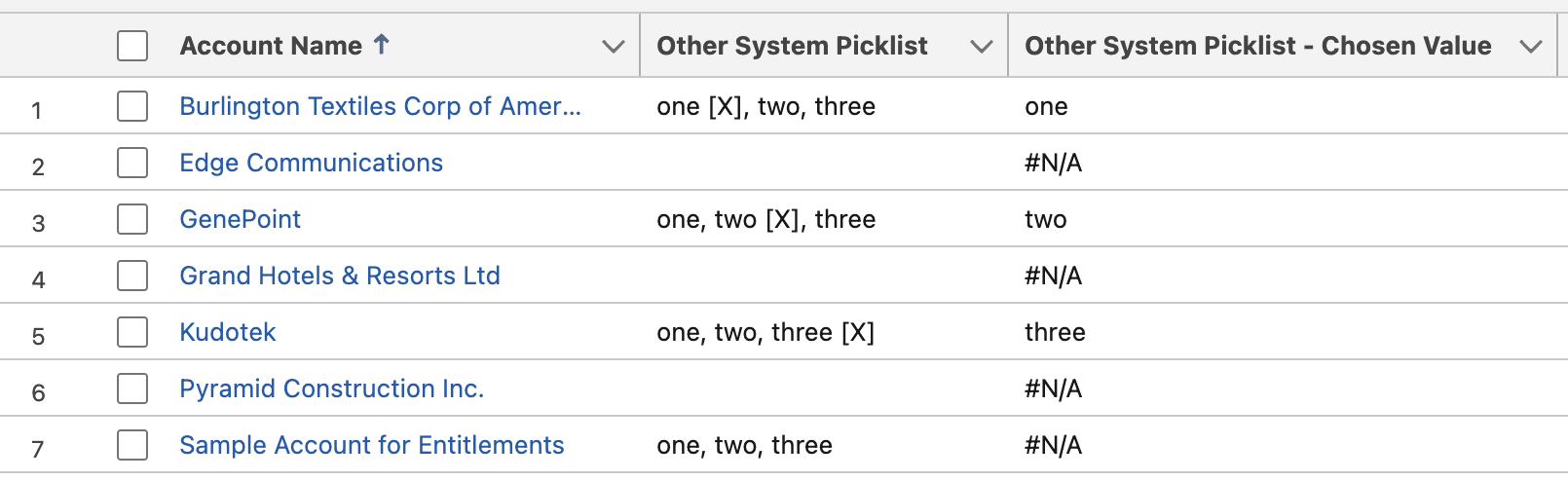
Q: The text field on a record shows a list of values with the selected value designated by an “[X]” (like “one, two [X], three”). How can I get a formula field to show just the chosen value, like the below?

A: Here’s the formula:

IF(
/* is "[X]" in the string? */
CONTAINS(Other_System_Picklist__c, "[X]"),
/* if "[X]" is in the string, then. . . */
IF(
/* does a comma precede the "[X]" value? */
CONTAINS(LEFT(Other_System_Picklist__c, FIND("[X]", Other_System_Picklist__c) - 2), ","),
/* a comma precedes the "[X]" value. do some fancy stuff */
REVERSE(
LEFT(
REVERSE(LEFT(Other_System_Picklist__c, FIND("[X]", Other_System_Picklist__c) - 2)),
FIND(",", REVERSE(LEFT(Other_System_Picklist__c, FIND("[X]", Other_System_Picklist__c) - 2))) - 1
)
),
/* no comma precedes the "[X]" value. do some less-fancy stuff */
LEFT(Other_System_Picklist__c, FIND("[X]", Other_System_Picklist__c) - 2)
),
/* no "[X]" in the string */
"#N/A"
)

quick observations:

  • as my friend Martin pointed out, this would be easier if Salesforce supported Regular Expressions in formulas.
    • Salesforce doesn’t, although you can use a limited REGEX() function for matching in stuff like Validation Rules.
    • a formula function that enabled searching from the end of a string (like InStrRev or rfind) could help, too. gotta use REVERSE() weirdly instead!
  • thanks to Daniel Parkhurst for the challenge! I look forward to that tasty beer next time you’re in town 😁

Two Tips for Windows➔Mac Converts

So I use a Mac in my new job and I’m striving to recreate all my familiar Windows behaviors. So far, my two biggest wins are that

1] Keyboard Maestro does a terrific job:

  • not only is it easy to set up new keystrokes (like I used to do in AutoHotKey),
  • but the “insert date” keystroke I implemented with it runs faster than the one I created using Automator. slick!
  • I still haven’t found a way to create accelerator keys for menus, but a keystroke for dropping the File menu is an okay start:
Keyboard Maestro Screenshot: “Select or Show a Menu Item”

2] Documents can be added to the LaunchPad:

  • I use this to launch my fave white noise MP3. handy!