Author Archives: Ezra Kenigsberg

Unknown's avatar

About Ezra Kenigsberg

#Salesforce architecture/data guru & @BigCommerce employee; film noir buff; expatriate Jewish New Yorker; proud papa

Dates in SOQL

A quickie example of two date-handling tricks in SOQL: this query lists the number of Opportunities created each day this month.

SELECT DAY_ONLY(CreatedDate), COUNT(Id)
FROM Opportunity
WHERE CreatedDate = THIS_MONTH
GROUP BY DAY_ONLY(CreatedDate)
ORDER BY DAY_ONLY(CreatedDate)

The two cool things going on here:

  1. the DAY_ONLY() function removes the timestamp part of CreatedDate. That’s but one of a bunch of handy Date functions in SOQL.
    • remember that the functions that end in _QUARTER() or _MONTH() don’t include the year, so you may want to pair them with a *_YEAR() function.
      • For example, the badboy below groups Opportunities by the year-and-quarter they were created over the last three years:
        SELECT CALENDAR_YEAR(CreatedDate), CALENDAR_QUARTER(CreatedDate), COUNT(Id)
        FROM Opportunity
        WHERE CreatedDate = LAST_N_YEARS:3
        GROUP BY CALENDAR_YEAR(CreatedDate), CALENDAR_QUARTER(CreatedDate)
        ORDER BY CALENDAR_YEAR(CreatedDate), CALENDAR_QUARTER(CreatedDate)
  2. the THIS_MONTH and LAST_N_YEARS items in the WHERE clauses above are date literals, and there are a whole gaggle of handy ones.
    • I haven’t thought of a simple way, in declarative SOQL, to perfectly say “going back to today’s date, X years ago”. Unless the number of years ago is divisible by 4, you’re likely to include or exclude one day too many, because of leap years.
      • WHERE CreatedDate = LAST_N_DAYS:365 might be a day too few!
      • WHERE CreatedDate = LAST_N_DAYS:366 might be a day too many!
      • WHERE CreatedDate = LAST_N_DAYS:1461 (that is, 365 * 4 + 1) should always work!

Thanks to Francisco Figueroa Hernández for reminding me of this!

My Apple Watch Compulsion, #1 in an Unlimited Series

The most useful things I’ve learned from my month of Apple Watch ownership:1

  1. I keep the watch in Theater Mode all the time. The screen only turns on when I specifically press a button. A battery charge lasts longer.
  2. Slapping the face of the watch with my palm turns off the screen and silences alerts. Which is terribly satisfying.
  3. The watch face named “Infograph” offers the most complications. (sheesh, can’t we just call them widgets, or doodads?)
  4. An elegant hack for cramming more complications onto the watch face:
  5. This guy’s tips are pretty good.

  1. Yah, I caved and finally bought me a smartwatch. For a guy who works in tech, I have some Luddite tendencies–I generally only pick up a new technology when I see a clear use case for it.

    I’d been ruminating buying one for awhile (I was particularly jazzed about the concept of an e-ink smartwatch).

    But at the end of the day, my concrete use case was a device that (a) worked like a phone when I took it running (out of Bluetooth range of my iPhone), and (b) wasn’t gigantic on my ladylike wrist. Add those up and it meant I was going for a cellular model of the latest, smallest Apple Watch, the 41mm Series 9.

    The watch’s purpose is to protect me from the phone, which is kind of breathtaking when I think about it: I purchased device #2 to protect me from device #1. But don’t take my word for it–it’s related in this entertaining Wired article from 2015:

    Along the way, the Apple team landed upon the Watch’s raison d’être. It came down to this: Your phone is ruining your life. ↩︎

Wanna Date? Part 2

Q: Putting dates in filenames is a brilliant way to organize things! How might I create a YYYY-MM-DD timestamp with a keyboard shortcut?

A: On a Windows PC, I

  1. installed the free macro tool AutoHotKey and
  2. created this script.

If memory serves, you don’t even need admin control of your PC to do this, but YMMV.


On a Mac, [update] I recommend using Keyboard Maestro. It’s quicker and easier than the original solution I described below.

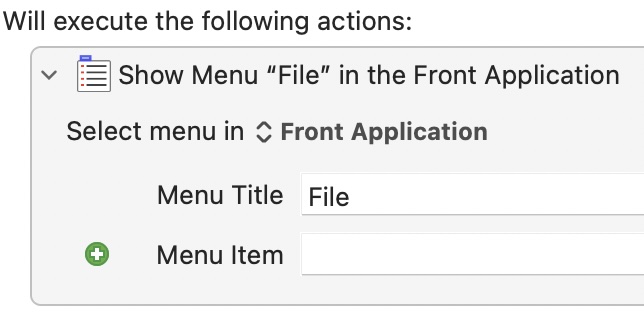
Here’s how KM does Dates and Times–I’ll write up a step-by-step how-to in my copious free time.[/update]

I created an “Insert Current Date as ISO” shortcut from this post.

(I followed the instructions in the section titled “Alternatively, Use Automator Yourself” because I’m a sucker for learning by doing things the laborious manual way. Errors are the portals of discovery and all that!)

Wanna Date? Part 1

My entirely-unsolicited advice about dates:

1] Get into the habit of putting the current date in files and filenames!

  • When I’m taking notes, I put the date at the very beginning of a file’s name
  • When I’m saving a (non-notesy) file, I’ll put the date at the end of the file’s name1

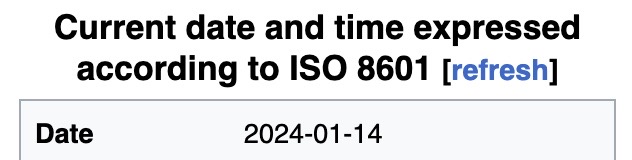
2] Start thinking in YYYY-MM-DD format!

  • Salesforce stores dates, and the date part of datetimes, in this format. Getting proficient with this format helps me work with Salesforce data.
  • The good people who standardize such things (ISO, which it turns out is neither an acronym or an initialism) dictated this standard because it makes computers happy: it
    • is consistent across languages
    • has a consistent length
    • alphabetizes in chronological order
    • can be consistently truncated to get just-the-year or just-the-year-and-month
    • is Y2K compatible (whoo, that takes me back)

okay, tirade over. Happy belated new year, y’all.

Update: create a YYYY-MM-DD datestamp with a keyboard shortcut!


  1. Why? Because that way I can update the date whenever I make a meaningful revision to the file.

    The date a file was last modified isn’t always helpful. There are plenty of times I might tweak a file’s format, or fix a minor typo–and those changes don’t rise to the level of a “revision”, imo.

    Consciously choosing whether or not to revise the date at the end of a filename helps me truly know its sell-by date.

    Here’s an example of a random folder on my drive, filled with assorted files and documentation: ↩︎

. . . notice how

  • the notesy files capture the date I took the notes (at the beginning of the filename, which 1. alphabetizes them at the top of my folder, 2. in chronological order), and
  • the Visualforce file “Custom Console Component – Example 2017-04-13.vfp” has a date at its end, which captures the last time I made any meaningful revisions to it.

Bypassing Data Validation, the Clever Way

Q: “How do I make a Salesforce record bypass Data Validation?”

A: The Clever Way:

  1. create a checkbox field on the desired object called “Toggle Me to Bypass Validation” (or something like it); and
  2. change your Validation Rules on the desired object to ignore records where “Toggle Me to Bypass Validation” has changed–add a clause like NOT(ISCHANGED(Toggle_Me_to_Bypass_Validation__c)).

You’re done!


In the pastfolks implemented this the Adequate Way:

  1. create a checkbox called “Bypass Validation Rules for this Record” (or something like it);
  2. change your Validation Rules to ignore records where “Bypass Data Validation for this Record” is TRUE–add a clause like NOT(Bypass_Validation_Rules_for_this_Record__c); and
  3. create a Flow or Apex Trigger to change “Bypass Data Validation for this Record” back to FALSE whenever it’s set to TRUE.

The problem with this approach: step 3.

  • The Flow or Apex Trigger changes the record AGAIN, which–depending on your config–could cause logic to re-run. suboptimal.
  • The Clever Way only touches the record once.
  • If you need to programmatically bypass Validation Rules for an existing record, set the record’s “Toggle Me to Bypass Validation” to NOT(Toggle_Me_to_Bypass_Validation__c) in your Flow or Apex logic.

Props to Hanna Martynenko for the idea!

Post-Hyperforce Fallout

A headsup for anyone whose Production org hasn’t been upgraded to Hyperforce yet: after cutover, all our integration users had to re-authenticate. Made for a lively Monday in the office.


Also, this formula field (Number 18, 0) causes any Hyperforce org’s Report to return a “Number Too Large” error. . .

FIND(MID(Id, 15, 1), "ABCDEFGHIJKLMNOPQRSTUVWXYZabcdefghijklmnopqrstuvwxyz0123456789") * 100000000

. . . but it works fine in

  • Page Layouts and
  • non-Hyperforce Reports.

What’s up with that? I’ve logged it as a question, too.

Kudosync ETL Lives!

If anyone out there still has Microsoft Access, well, today’s your lucky day. I’ve reuploaded Kudosync, my poor-man’s ETL tool.

Here’s the dedicated page (with all the documentation I wrote. . . three Tarantino movies ago).

A feature I added awhile ago: the ability to combine Salesforce SOQL with Access SQL–in the example below, you can see the Contact query

SELECT Id, AccountId
FROM Contact
WHERE AccountId IN ([SELECT Id FROM tbl01_Account])

. . . the SELECT Id FROM tbl01_Account bit refers to data from a previously-extracted table.

nifty!

The Salesforce Commandments: A Work in Progress

The Salesforce Commandments, a list of guiding principles for administrators, developers, architects, and consultants working in Salesforce
  1. You shall work under executives’ blessing
  • If the executives don’t use Salesforce, leave
  1. You shall track projects, requests, and bugs in tickets
  • If you don’t track tickets, start
  1. You shall gather requirements before developing
  • If you are not allowed to gather requirements, leave
  1. You shall develop in environments with a lifecycle
  • If you develop in Production, stop
  1. You shall favor customer needs over design
  • If you disregard customer needs, get over yourself
  1. You shall master one datum in one place
  • If you modify a datum in multiple places, consolidate
  1. You shall not lie in the data
  • If you lie in the data, redesign

There’s no shortage of Salesforce Commandments out there, but I like these seven because I

  • wrote them from my own hard-won experiences
  • recommend a course-of-action for each
  • ditched pretentious language (“thou shalt”? no thanks)
  • commit to revising them if I meet a sufficiently-compelling case (suggestions welcome!)

I first put it together in 2015ish, got it into its current shape in 2020, and presented it at an OpFocus DevOps roundtable in 2021.

Props to Steve O’Neal for the phrase “lie in the data”! Captures an important concept and sounds juuust a smidge Biblical.

Migrating Process Builder to Flow: The Third Way

Q: How can I migrate Processes to Flows?

A: SalesforceBen documents two ways (1. Salesforce’s own Migrate to Flow capability, and 2. Unofficial SF’s ConvertToFlow).

But I see a weakness: if either fails to digest a Process, it poops out halfway through and leaves me nothing to build on.

A third way is called for! If Migrate to Flow and ConvertToFlow don’t work for ya, try a little URL hacking:

  1. Open Developer Console, flip to the Query Editor tab, and check the “Use Tooling API” checkbox
  2. run the following query:

SELECT Id, DeveloperName, MasterLabel, Description, LatestVersionId, ActiveVersionId
FROM FlowDefinition
ORDER BY DeveloperName

  1. replace the 301 ID in the URL below with any Flow Definition Version ID from step 2 above:

https://na1.salesforce.com/builder_platform_interaction/flowBuilder.app?flowId=301abcdefghijklAAA

or, if you’re working in a Sandbox:

https://cs1.salesforce.com/builder_platform_interaction/flowBuilder.app?flowId=301abcdefghijklAAA

And pow, hey wow, whaddaya know, you’ve taken a Process like this

and converted it into a Flow like this (after you toggle from “Free-Form” to “Auto-Layout”):

. . . I still haven’t figured out how to save it as a BeforeSave. Because it came from a Process, it seems locked into being an AfterSave, ugh. Still working on that!

How Many Profiles Should I Have?

Q: With the advent (and ever-increasing features) of Permission Sets, how many Profiles should I assign my users to?

A: Louise Lockie’s terrific Dreamforce ’23 presentation, Architect a Permission-Set-Led Security Model (pp 29-34), advocates slimming down to three Profiles:

  • System Administrator (standard or custom)
  • API/Integration Profile (custom, using “Salesforce Integration” User License)
  • User Profile (custom, cloned from “Minimum Access – Salesforce” Profile)

The latter two Profiles should grant

  1. the barest-bones permissions and object/field access (when in doubt, leave it out!), with
  2. whatever Login/Session/Password settings adhere to your organization’s security policy.

Everything else can be granted by Permission Sets. Don’t forget to leverage features like

  • Permission Set Groups — to define a collection of Permission Sets that apply to a generalized Role like Sales Rep, Customer Support Rep, or Sales Manager. (Don’t forget the power of muting!)
  • User Access Policies — to assign Permission Sets and Permission Set Groups programmatically (eg, “if user has a ‘Sales Rep’ Role, assign them the ‘Sales Rep’ Permission Set Group”).
  • PermSet List Plus — to list all PermSets (whether assigned via PermSet OR PermSetGroup) in a single place

Three more random thoughts:

  1. User Access Policies is the feature I have really high hopes for. Programmatically assigning Permissions is huge. Sadly, at least as of this writing (2023-11-14), the feature still has some glaring omissions. In particular,
    • it doesn’t support OR boolean logic,
    • nor does it support specifying multiple values for fields like Department.
  2. I encourage you to name API/Integration Users with a consistent naming scheme that makes ’em easy to pick out. Personally, I set such users’
    • First Name to null, and
    • Last Name to “API User: [System]”, like “API User: NetSuite”.
  3. Supporting materials from Louise Leckie’s presentation can be found at bit.ly/PS-LL. So gratifying to see someone else is a Bitly fan!