Author Archives: Ezra Kenigsberg

Unknown's avatar

About Ezra Kenigsberg

#Salesforce architecture/data guru & @BigCommerce employee; film noir buff; expatriate Jewish New Yorker; proud papa

Divorce Google! Part 1

Quick question! Would you rather

A] navigate the internet, or

B] navigate the internet and give your valuable personal information to Google?

Because if you’re using Chrome, you’ve already chosen option B.


Switching to option A is pretty easy: install Brave and use it instead of Chrome.

  • Brave is built on the same foundational open-source code that Chrome is built on.
  • You can use the exact same extensions in both browsers.
  • But Brave doesn’t send gobs of your valuable personal data back to Google.

More anti-Google tirades (paranoia?) to come. Props to “Restore Privacy”.


All chapters of “Divorce Google”:

After-Save Flow Triggers Are Bad. Tell Me I’m Wrong.

I think Salesforce is downplaying that After-Save Flow Triggers are bad. Am I wrong?

Salesforce’s Architecture Decision Guide on Triggers argues that

  • we should move all our automation to “no-code” Flows or “pro-code” Apex
  • because Workflow and Process Builder are being retired.

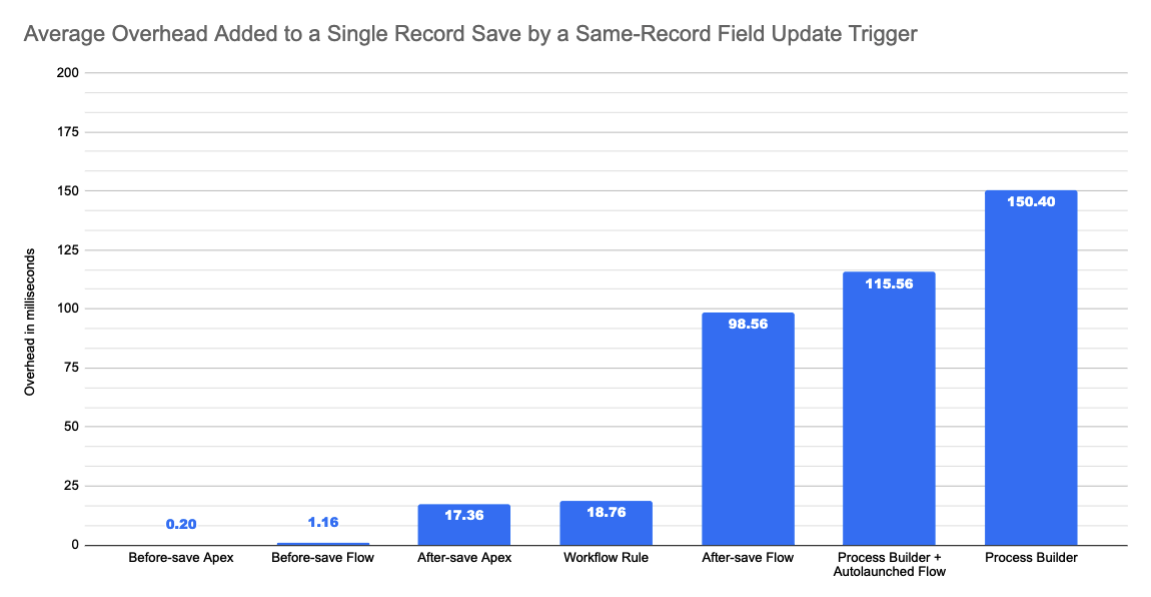
But but but. In the weeds of the article, there’s a comparison of different automations:

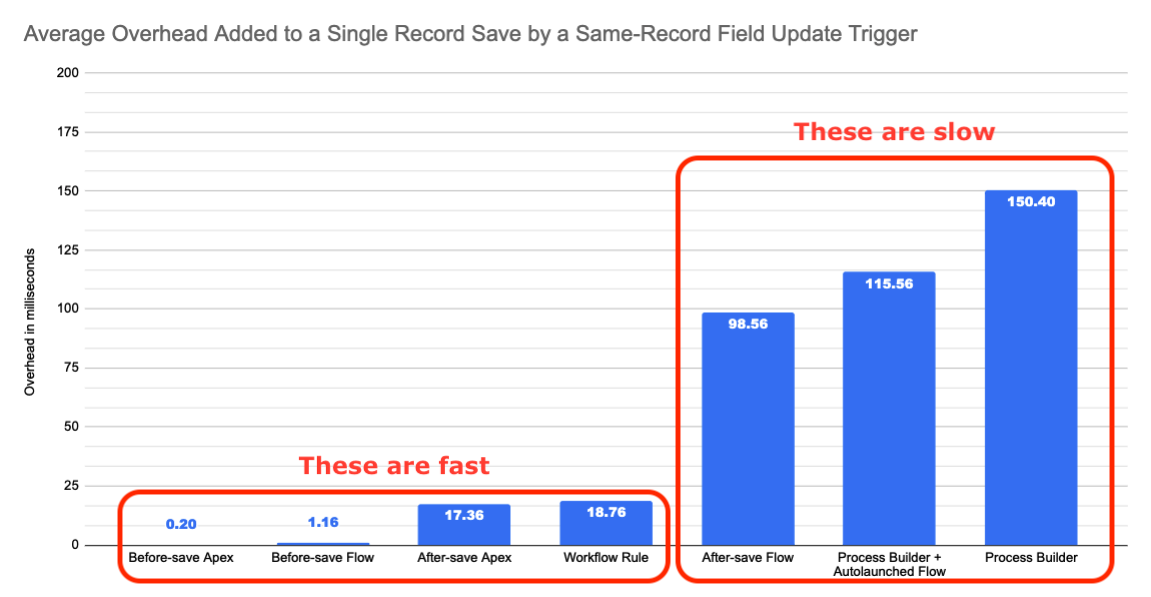
I read that comparison like this:

. . . and that imo puts After-Save Flow Triggers in the Process Builder camp of slow, bad automation.

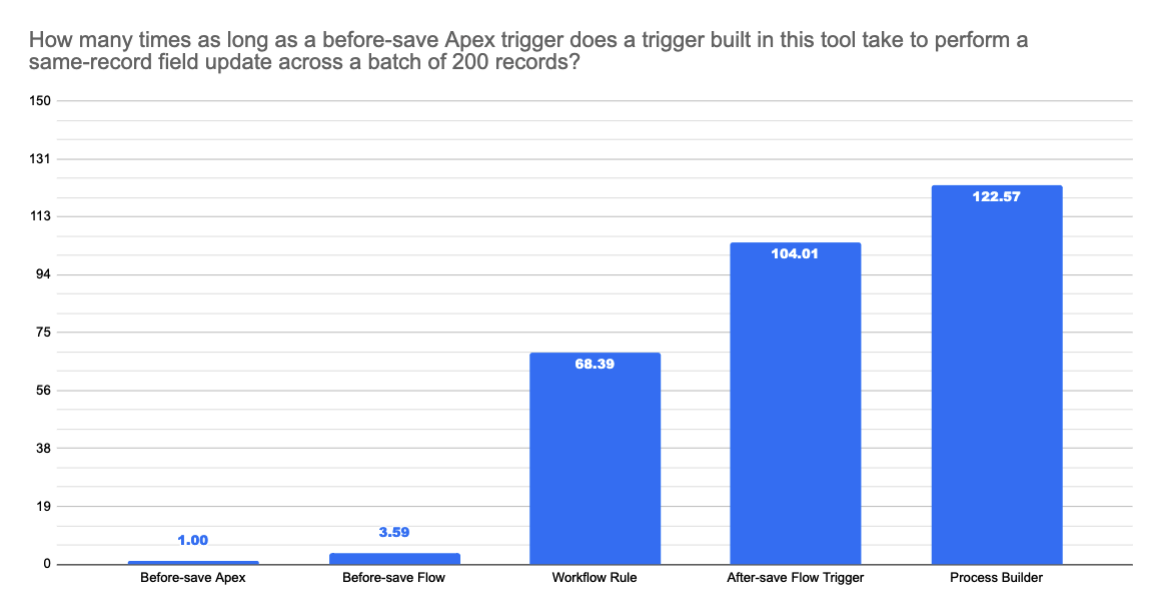
Diving a little deeper, there’s a second experiment and graph:

Edward Tufte would deride this for looking like the previous chart, but measuring something very different: multiples instead of milliseconds.

In any case, the upshot is similar: After-Save Flow Triggers again fall into the “bad” side:

Thanks to Melissa Shepard for bringing my attention to it!

Formula Challenge! Pull a Value out of a Comma-Separated Field

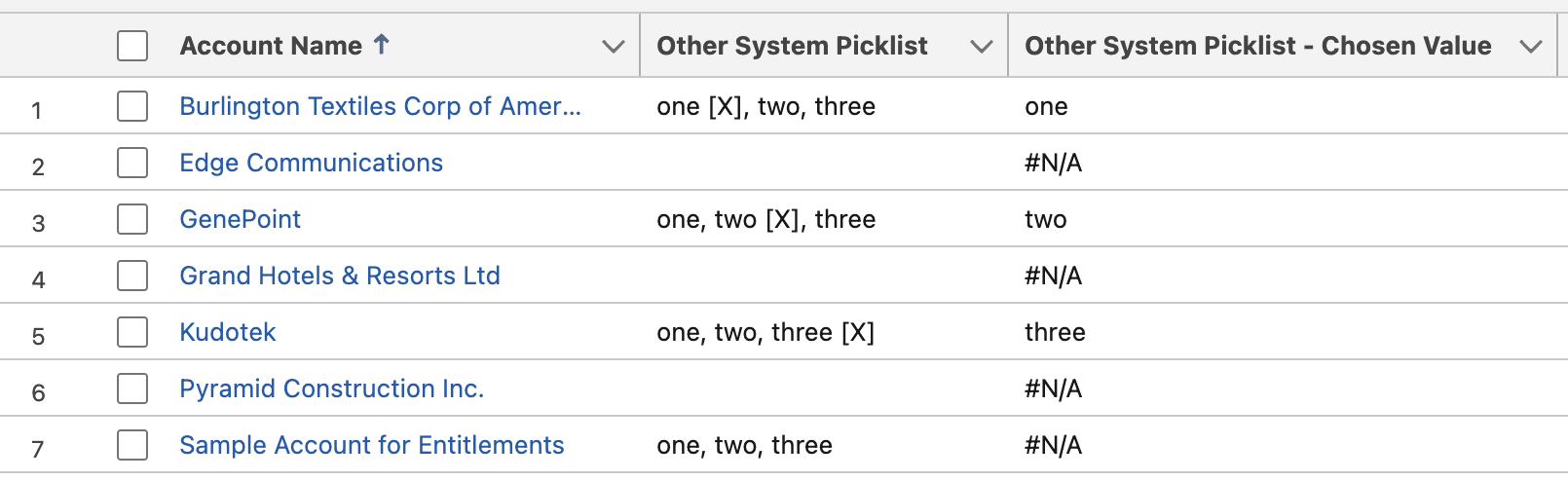
Q: The text field on a record shows a list of values with the selected value designated by an “[X]” (like “one, two [X], three”). How can I get a formula field to show just the chosen value, like the below?

A: Here’s the formula:

IF(
/* is "[X]" in the string? */
CONTAINS(Other_System_Picklist__c, "[X]"),
/* if "[X]" is in the string, then. . . */
IF(
/* does a comma precede the "[X]" value? */
CONTAINS(LEFT(Other_System_Picklist__c, FIND("[X]", Other_System_Picklist__c) - 2), ","),
/* a comma precedes the "[X]" value. do some fancy stuff */
REVERSE(
LEFT(
REVERSE(LEFT(Other_System_Picklist__c, FIND("[X]", Other_System_Picklist__c) - 2)),
FIND(",", REVERSE(LEFT(Other_System_Picklist__c, FIND("[X]", Other_System_Picklist__c) - 2))) - 1
)
),
/* no comma precedes the "[X]" value. do some less-fancy stuff */
LEFT(Other_System_Picklist__c, FIND("[X]", Other_System_Picklist__c) - 2)
),
/* no "[X]" in the string */
"#N/A"
)

quick observations:

  • as my friend Martin pointed out, this would be easier if Salesforce supported Regular Expressions in formulas.
    • Salesforce doesn’t, although you can use a limited REGEX() function for matching in stuff like Validation Rules.
    • a formula function that enabled searching from the end of a string (like InStrRev or rfind) could help, too. gotta use REVERSE() weirdly instead!
  • thanks to Daniel Parkhurst for the challenge! I look forward to that tasty beer next time you’re in town 😁

Two Tips for Windows➔Mac Converts

So I use a Mac in my new job and I’m striving to recreate all my familiar Windows behaviors. So far, my two biggest wins are that

1] Keyboard Maestro does a terrific job:

  • not only is it easy to set up new keystrokes (like I used to do in AutoHotKey),
  • but the “insert date” keystroke I implemented with it runs faster than the one I created using Automator. slick!
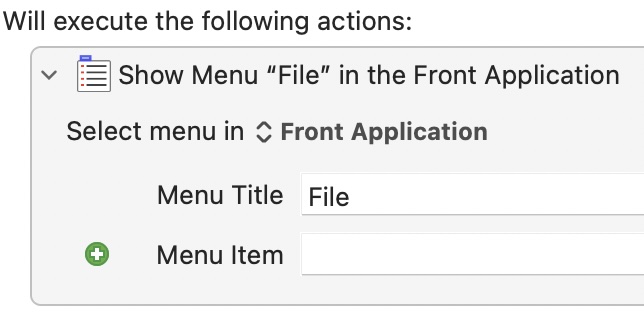
  • I still haven’t found a way to create accelerator keys for menus, but a keystroke for dropping the File menu is an okay start:
Keyboard Maestro Screenshot: “Select or Show a Menu Item”

2] Documents can be added to the LaunchPad:

  • I use this to launch my fave white noise MP3. handy!

Dates in SOQL

A quickie example of two date-handling tricks in SOQL: this query lists the number of Opportunities created each day this month.

SELECT DAY_ONLY(CreatedDate), COUNT(Id)
FROM Opportunity
WHERE CreatedDate = THIS_MONTH
GROUP BY DAY_ONLY(CreatedDate)
ORDER BY DAY_ONLY(CreatedDate)

The two cool things going on here:

  1. the DAY_ONLY() function removes the timestamp part of CreatedDate. That’s but one of a bunch of handy Date functions in SOQL.
    • remember that the functions that end in _QUARTER() or _MONTH() don’t include the year, so you may want to pair them with a *_YEAR() function.
      • For example, the badboy below groups Opportunities by the year-and-quarter they were created over the last three years:
        SELECT CALENDAR_YEAR(CreatedDate), CALENDAR_QUARTER(CreatedDate), COUNT(Id)
        FROM Opportunity
        WHERE CreatedDate = LAST_N_YEARS:3
        GROUP BY CALENDAR_YEAR(CreatedDate), CALENDAR_QUARTER(CreatedDate)
        ORDER BY CALENDAR_YEAR(CreatedDate), CALENDAR_QUARTER(CreatedDate)
  2. the THIS_MONTH and LAST_N_YEARS items in the WHERE clauses above are date literals, and there are a whole gaggle of handy ones.
    • I haven’t thought of a simple way, in declarative SOQL, to perfectly say “going back to today’s date, X years ago”. Unless the number of years ago is divisible by 4, you’re likely to include or exclude one day too many, because of leap years.
      • WHERE CreatedDate = LAST_N_DAYS:365 might be a day too few!
      • WHERE CreatedDate = LAST_N_DAYS:366 might be a day too many!
      • WHERE CreatedDate = LAST_N_DAYS:1461 (that is, 365 * 4 + 1) should always work!

Thanks to Francisco Figueroa Hernández for reminding me of this!

My Apple Watch Compulsion, #1 in an Unlimited Series

The most useful things I’ve learned from my month of Apple Watch ownership:1

  1. I keep the watch in Theater Mode all the time. The screen only turns on when I specifically press a button. A battery charge lasts longer.
  2. Slapping the face of the watch with my palm turns off the screen and silences alerts. Which is terribly satisfying.
  3. The watch face named “Infograph” offers the most complications. (sheesh, can’t we just call them widgets, or doodads?)
  4. An elegant hack for cramming more complications onto the watch face:
  5. This guy’s tips are pretty good.

  1. Yah, I caved and finally bought me a smartwatch. For a guy who works in tech, I have some Luddite tendencies–I generally only pick up a new technology when I see a clear use case for it.

    I’d been ruminating buying one for awhile (I was particularly jazzed about the concept of an e-ink smartwatch).

    But at the end of the day, my concrete use case was a device that (a) worked like a phone when I took it running (out of Bluetooth range of my iPhone), and (b) wasn’t gigantic on my ladylike wrist. Add those up and it meant I was going for a cellular model of the latest, smallest Apple Watch, the 41mm Series 9.

    The watch’s purpose is to protect me from the phone, which is kind of breathtaking when I think about it: I purchased device #2 to protect me from device #1. But don’t take my word for it–it’s related in this entertaining Wired article from 2015:

    Along the way, the Apple team landed upon the Watch’s raison d’être. It came down to this: Your phone is ruining your life. ↩︎

Wanna Date? Part 2

Q: Putting dates in filenames is a brilliant way to organize things! How might I create a YYYY-MM-DD timestamp with a keyboard shortcut?

A: On a Windows PC, I

  1. installed the free macro tool AutoHotKey and
  2. created this script.

If memory serves, you don’t even need admin control of your PC to do this, but YMMV.


On a Mac, [update] I recommend using Keyboard Maestro. It’s quicker and easier than the original solution I described below.

Here’s how KM does Dates and Times–I’ll write up a step-by-step how-to in my copious free time.[/update]

I created an “Insert Current Date as ISO” shortcut from this post.

(I followed the instructions in the section titled “Alternatively, Use Automator Yourself” because I’m a sucker for learning by doing things the laborious manual way. Errors are the portals of discovery and all that!)

Wanna Date? Part 1

My entirely-unsolicited advice about dates:

1] Get into the habit of putting the current date in files and filenames!

  • When I’m taking notes, I put the date at the very beginning of a file’s name
  • When I’m saving a (non-notesy) file, I’ll put the date at the end of the file’s name1

2] Start thinking in YYYY-MM-DD format!

  • Salesforce stores dates, and the date part of datetimes, in this format. Getting proficient with this format helps me work with Salesforce data.
  • The good people who standardize such things (ISO, which it turns out is neither an acronym or an initialism) dictated this standard because it makes computers happy: it
    • is consistent across languages
    • has a consistent length
    • alphabetizes in chronological order
    • can be consistently truncated to get just-the-year or just-the-year-and-month
    • is Y2K compatible (whoo, that takes me back)

okay, tirade over. Happy belated new year, y’all.

Update: create a YYYY-MM-DD datestamp with a keyboard shortcut!


  1. Why? Because that way I can update the date whenever I make a meaningful revision to the file.

    The date a file was last modified isn’t always helpful. There are plenty of times I might tweak a file’s format, or fix a minor typo–and those changes don’t rise to the level of a “revision”, imo.

    Consciously choosing whether or not to revise the date at the end of a filename helps me truly know its sell-by date.

    Here’s an example of a random folder on my drive, filled with assorted files and documentation: ↩︎

. . . notice how

  • the notesy files capture the date I took the notes (at the beginning of the filename, which 1. alphabetizes them at the top of my folder, 2. in chronological order), and
  • the Visualforce file “Custom Console Component – Example 2017-04-13.vfp” has a date at its end, which captures the last time I made any meaningful revisions to it.

Bypassing Data Validation, the Clever Way

Q: “How do I make a Salesforce record bypass Data Validation?”

A: The Clever Way:

  1. create a checkbox field on the desired object called “Toggle Me to Bypass Validation” (or something like it); and
  2. change your Validation Rules on the desired object to ignore records where “Toggle Me to Bypass Validation” has changed–add a clause like NOT(ISCHANGED(Toggle_Me_to_Bypass_Validation__c)).

You’re done!


In the pastfolks implemented this the Adequate Way:

  1. create a checkbox called “Bypass Validation Rules for this Record” (or something like it);
  2. change your Validation Rules to ignore records where “Bypass Data Validation for this Record” is TRUE–add a clause like NOT(Bypass_Validation_Rules_for_this_Record__c); and
  3. create a Flow or Apex Trigger to change “Bypass Data Validation for this Record” back to FALSE whenever it’s set to TRUE.

The problem with this approach: step 3.

  • The Flow or Apex Trigger changes the record AGAIN, which–depending on your config–could cause logic to re-run. suboptimal.
  • The Clever Way only touches the record once.
  • If you need to programmatically bypass Validation Rules for an existing record, set the record’s “Toggle Me to Bypass Validation” to NOT(Toggle_Me_to_Bypass_Validation__c) in your Flow or Apex logic.

Props to Hanna Martynenko for the idea!