Author Archives: Ezra Kenigsberg

Unknown's avatar

About Ezra Kenigsberg

#Salesforce architecture/data guru & @BigCommerce employee; film noir buff; expatriate Jewish New Yorker; proud papa

Reset Flow Limits with Pause Element

Has anyone tried this? Has it worked for you?

Yumi Ibrahimzade’s “Salesforce Time” blog floated a fascinating idea:

adding a zero-duration Pause Element to an Autolaunched Flow.

“By doing so,” Yumi writes, “this element will end the flow transaction, which will reset the flow limits.”

configuring that would look like this:

. . . I imagine this easily fixes a Flow that’s running into limit errors.

On the flip side, I could imagine this superficially fixing a Flow without addressing underlying problems.

I’d love to hear your experience! I hope to update this post after I get a chance to test.

Symmetry in Action

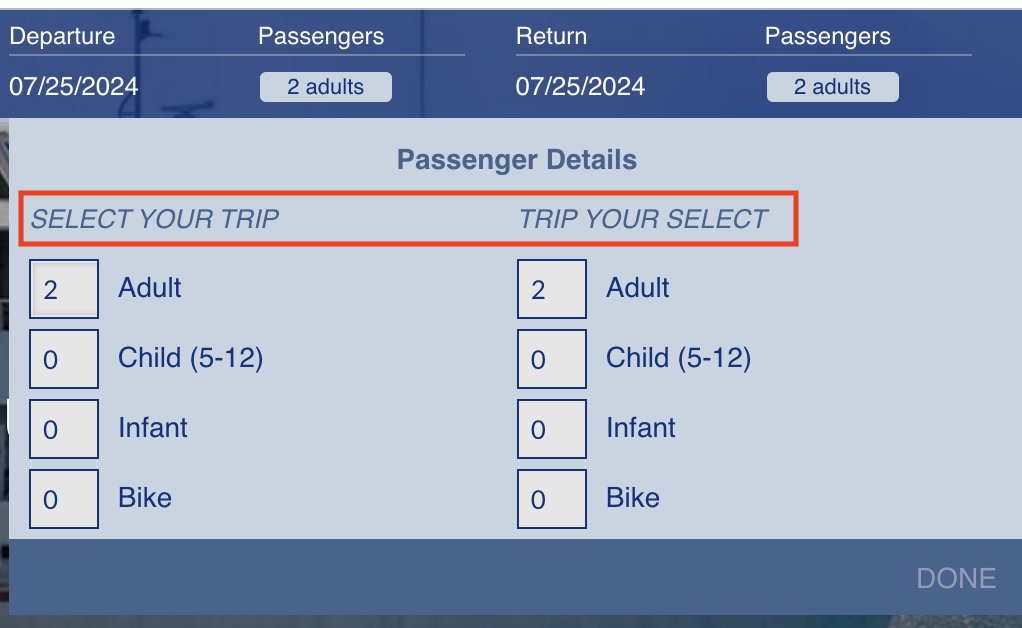
If the prompt for the outbound ticket is “Select Your Trip”, there’s a lovely symmetry in captioning the return trip “Trip Your Select”!

  • I free-associated to that Beastie Boys line “I’m losing my mind, this time / This time I’m losing my mind”
  • “Tceles Ruoy Pirt” also would’ve been great
  • Everybody could use more Blake

Report Summary Formulas Still Don’t Support Dates? wtf

Salesforce’s Reporting capability, always wonky, still doesn’t support dates in its Summary Formulas. Users need Custom Summary Formulas to return Dates.

It’s deeply frustrating that this ticket, which merged previous requests for Custom Summary Formulas to return Dates, was marked “Delivered” when the underlying need remains undelivered.

Vote for the ideas that capture this longtime, simple need:

Soft Data Validation

Q: How might I validate a record but still allow it to save if it fails?

A: I use a little bit of formula-field sneakiness.

Let’s say you’re a consultancy and you’ve got three project-related dates on an Opportunity (Close Date, Implementation Date, Go-Live Date) that need to occur sequentially. Here’s what that output could look like:

To implement it, I suggest creating a Formula(Text) field named “Date Audit” like this:

IF(NOT(ISBLANK(Implementation_Date__c)) &&
    Implementation_Date__c <= CloseDate,
   "❌ Implementation Date Must Be Later than Close Date" & BR(),
   "") &
IF(NOT(ISBLANK(Go_Live_Date__c)) &&
    Go_Live_Date__c <= CloseDate,
   "❌ Go-Live Date Must Be Later than Close Date" & BR(),
   "") &
IF(NOT(ISBLANK(Implementation_Date__c)) &&
    NOT(ISBLANK(Go_Live_Date__c)) &&
    Go_Live_Date__c <= Implementation_Date__c,
   "❌ Go-Live Date Must Be Later than Implementation Date" & BR(),
   "")

How Many Records Does [User X] Own?

Q: How many records does a given user own in Salesforce?

A: A quickie URL hack gets your answer. Paste the following after force.com in your address bar, replacing 005ABCDEFGHIJKL with the desired user’s ID:

/setup/user/userstorageusage.jsp?id=005ABCDEFGHIJKL

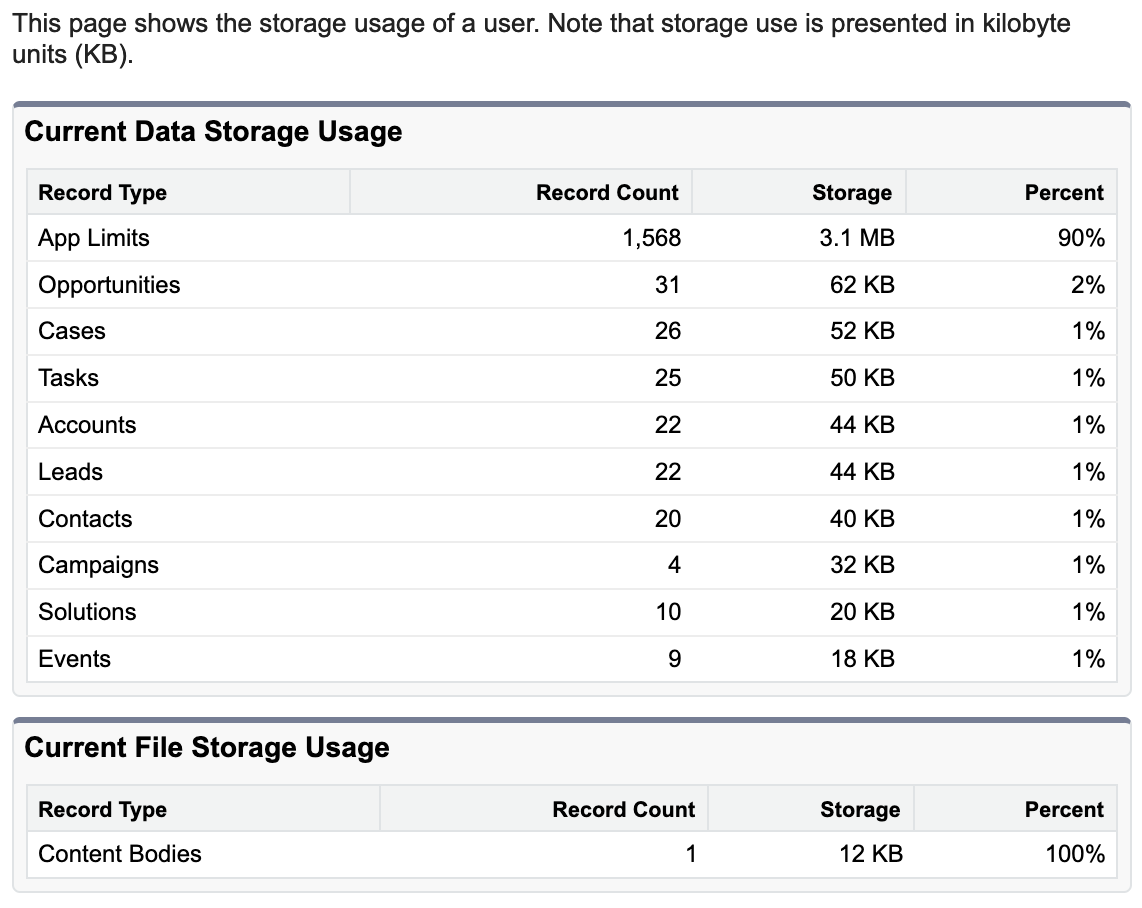
the page looks like this (though presumably with many more records than you’d find in one of my Dev Sandboxes!)

individual User’s “Current Data Storage Usage” screenshot

Where’d this come from? If you navigate to Setup | Data | Storage Usage, there’re two underknown sections at the bottom of the page, for “Top Users by Data Storage Usage” and “Top Users by File Storage Usage”.

Clicking a username in either one of those sections gets you the URL and page shown above.

Extracting the URL from a Hyperlinked Google Sheet Cell

Q: I’ve got a Google Sheet cell that links to a URL. How can extract that URL?

A: The best solution I’ve found comes from this StackOverflow post.

Step by step:

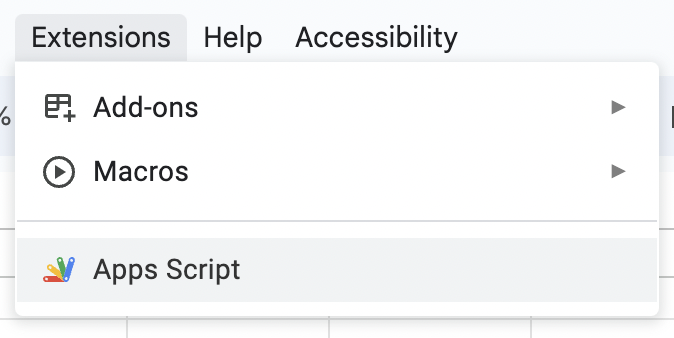
1] click “Extensions | App Script” in your desired spreadsheet

2] in the Apps Script browser tab, select all existing text and replace it with the following:

/** 
 * Returns the URL of a hyperlinked cell, if it's entered with control + k. 
 * Author: @Frederico Schardong based on https://support.google.com/docs/thread/28558721?hl=en&msgid=28927581
 * and https://github.com/andrebradshaw/utilities/blob/master/google_apps/convertHiddenLinks.gs 
 * Supports ranges
 */
function linkURL(reference) {
  var sheet = SpreadsheetApp.getActiveSheet();
  var formula = SpreadsheetApp.getActiveRange().getFormula();
  var args = formula.match(/=\w+\((.*)\)/i);
  try {
    var range = sheet.getRange(args[1]);
  }
  catch(e) {
    throw new Error(args[1] + ' is not a valid range');
  }
  
  var formulas = range.getRichTextValues();
  var output = [];
  for (var i = 0; i < formulas.length; i++) {
    var row = [];
    for (var j = 0; j < formulas[0].length; j++) {
      row.push(formulas[i][j].getLinkUrl());
    }
    output.push(row);
  }
  return output
}

3] click the Save button (a floppy disk!)

4] return to your spreadsheet’s browser tab and type the formula =linkURL(A1) in any cell (replacing the A1 bit with the relevant cell).

That’s it! This JavaScript formula works with both cells that have

  • =HYPERLINK() formulas and
  • embedded links (like ones copied from Salesforce pages 🙂)

Too Many Jira Updates

Q: I’m getting too many notifications from Jira. How do I get more signal, less noise?

A: The three ways I do it:

1] When I get a Jira email I didn’t want, I click the “Manage Notifications” button in the lower left-hand corner of the email:

. . . and chop down Default Notification Settings. Here’s where I’m at now:

. . . and nothing else.


2] I also keep a sharp eye on how many tickets I’m “Watching“, to use Jira’s term of art.

I turn individual tickets’ Watched status on and off using the eyeball icon in the upper right-hand corner of an individual ticket:


3] I bulk-deactivate Watching for a bunch of tickets by

a] turning on JQL after a search:

b] searching for watcher = currentUser(), then choosing “Bulk change all X issue(s)” from the hamburger:

c] walking through the “Bulk Operation” wizard, and choosing “Stop Watching Issues” when prompted

Tickle Those Old Flows, Kids

If your active, Autolaunched Trigger Flow was last modified before Summer ’21 (around May-June 2021), it won’t show up in your Flow Trigger Explorer.

Thanks to Jack O’Brien for finding the relevant help article!

screenshot from Salesforce Help explaining that Trigger Flows created before Summer ’21 don’t show up in Flow Trigger Explorer

oh yah. . . you can translate a number like “232” into a seasonal Salesforce release by modifying the 248 in the following URL and seeing which release’s notes pop up:

https://help.salesforce.com/s/articleView?id=release-notes.salesforce_release_notes.htm&release=248&type=5

. . . Salesforce increments each seasonal release by 2, and counting back from Spring ’24 (internally numbered 248) gets us. . .

  • 246 = Winter ’23
  • 244 = Summer ’23
  • 242 = Spring ’23
  • 240 = Winter ’22
  • 238 = Summer ’22
  • 236 = Spring ’22
  • 234 = Winter ’21
  • 232 = Summer ’21

so there ya go! Looks like that URL-hacking trick works all the way back to 218 (Spring ’19).