Author Archives: Ezra Kenigsberg

Unknown's avatar

About Ezra Kenigsberg

#Salesforce architecture/data guru & @BigCommerce employee; film noir buff; expatriate Jewish New Yorker; proud papa

Diving Deep into Profiles and Permissions

Q: Where can I find resources from the “Diving Deep into Profiles and Permissions” presentation at the 2025 Texas Dreamin’ user conference?

A: Here are resources from my May 30, 2025 Texas Dreamin’ presentation, “Diving Deep into Profiles and Permissions”:

First, I recommend the following (free!) Salesforce tools:

Use these to migrate your org from a Profile-led model to a Permission-Set-led model.

Salesforce MVP Louise Lockie created terrific resources explaining why and how to migrate.

In my presentation, I walked through the practical steps of migrating a clean Developer Edition org’s three Custom Profiles to Permission Sets:

  1. download your Profile XMLs
  2. create upload-ready zip files1 for the Salesforce Metadata API; and finally
  3. deploy those zip files

In the “Bonus Round!” section of the preso, I showed how Permission Sets’ field settings can be queried using SOQL, like this:

  SELECT Parent.Name, Field, 
         PermissionsEdit, 
         PermissionsRead 
    FROM FieldPermissions
ORDER BY Parent.Name, Field

and how a Permission Set can be created by adding rows to the PermissionSet and FieldPermissions tables.2

Rights to all code in this post are subject to The MIT License.3

  1. Expanding on step 2: I created ChatGPT scripts to

    create a “Common Permissions” Permission Set for privileges that all three Profiles have in common. (You’ll need to attach the Profiles’ XMLs to your request.)

    Create a Salesforce Metadata API-deployable zip file that contains a Permission Set named "Common Permissions".
    • The Permission Set should be pretty-formatted and have the Field Permissions, Object Permissions, and User Permissions that are common to all Profiles attached to this request. The Profiles' filenames contain special characters that might cause a file access issue. The XML parser should account for the fact that all entries are found within the namespace "http://soap.sforce.com/2006/04/metadata".
    • It should have a tag named "license" with the value "Salesforce".
    • It should have a tag named "label" with the value "Common Permissions".
    • It should exclude any tags that cannot be specified in a Permission Set.
    • The "Common Permissions" Permission Set should be in a folder named "permissionsets" inside the zip file.
    • The zip file should also include a package.xml file.


    create Permission Sets for privileges that are distinct to some (ie, one or more) of the Profiles, but not all. (You’ll need to attach the Profiles’ XMLs to your request.)

    Compare the attached Salesforce Profile XMLs.
    • Note that the filenames contain special characters that might cause a file access issue.
    • The XML parser should account for the fact that all entries are found within the namespace "http://soap.sforce.com/2006/04/metadata".

    For each Salesforce object, compare (1) the Object Permissions, and (2) the associated Field Permissions for that object, across all Profiles.

    For each Salesforce object where there are differences, create pretty-formatted Permission Sets that contain each permutation of Object Permissions and Field Permissions that differ. Each Permission Set should be named "[Object] Permissions [Create], [Delete], [Edit], [Read], [Modify All], [View All] V[X], E[Y]", where 1) "[Object]" is the name of the Salesforce object; 2) each of the values "[Create]", "[Delete]", "[Edit]", "[Read]", "[Modify All]", and "[View All]" is shown if that particular value is set to True for that particular Permission Set; and 3) "[X]" is the number of fields that are readable in that Permission Set, and "[Y]" is the number of fields that are editable in that Permission Set.

    Create a Salesforce Metadata API-deployable zip file that contains all the Permission Sets.
    • Each Permission Set in the zip file should be pretty-formatted and have the Field Permissions and Object Permissions for a single object.
    • Each Permission Set should have a tag named "license" with the value "Salesforce".
    • Each Permission Set should have a tag named "label" with the value equal to the Permission Set's name.
    • Each Permission Set file should have a Salesforce Metadata API-friendly version of the name (where characters have been replaced by escape values where needed).
    • The Permission Sets should be in a folder named "permissionsets" inside the zip file.
    • The zip file should also include a package.xml file.

    reassign Users to the Minimal Profile, and assign them to the correct Permission Sets. (You’ll need to edit the text to reflect the UI labels of your Profiles and Permission Sets. Once updated, this script should be run from Developer Console’s Execute Anonymous window.)

    write Apex code that can run from Salesforce's Execute Anonymous window.

    it should
    1) assign all active users to the Profile named "Minimum Access - Salesforce",
    2) assign them to the Permission Set "Common Permissions", and
    3) also assign them to the appropriate Permission Sets created above (their labels are "Case Permissions Create, Delete, Edit, Read V20, E13", "Case Permissions Create, Edit, Read V19, E12", "Lead Permissions Create, Delete, Edit, Read V18, E15", "Lead Permissions Create, Delete, Edit, Read V20, E17", "Lead Permissions Create, Delete, Edit, Read V22, E19", "Opportunity Permissions Create, Delete, Edit, Read V13, E13", "Opportunity Permissions Create, Delete, Edit, Read V16, E16", "Solution Permissions Create, Delete, Edit, Read V3, E3", and "Solution Permissions Create, Read V3, E3") that replicate the Permissions they had when they were assigned to the Profiles "Custom: Marketing Profile", "Custom: Sales Profile", or "Custom: Support Profile".
    ↩︎
  2. Here’s the ChatGPT prompt which generates the Apex code to create the “Opportunity – Read/Write All Fields” Permission Set. (Before you run the Apex code, you need to create a Remote Site Setting in Salesforce for your base URL, something like https://[name]-dev-ed.develop.my.salesforce.com for a Developer Edition, or https://[name].my.salesforce.com/ for a Production org.)
    write Apex code that I can run from the "Execute Anonymous" window in Salesforce's Developer Console that queries the EntityParticle table via Tooling API v63.0 to determine all Opportunity fields whose "IsPermissionable" attribute is True. Use getOrgDomainUrl() instead of getSalesforceBaseUrl() to get my org's base URL. I've already created a Remote Site Setting that references the base URL of my Salesforce org.

    create a Permission Set named "Opportunity - Read/Write All Fields" (by inserting a new record in the PermissionSet table) that grants
    1) Read and Edit access to Opportunity (by inserting a record in the ObjectPermissions table),
    2) read/write access to the subset of those "IsPermissionable = True" fields where the "IsUpdatable" attribute is True (by inserting records in the FieldPermissions table), and
    3) read access to the subset of the "IsPermissionable = True" fields where only the "IsUpdatable" attribute is False (by inserting records in the FieldPermissions table).
    ↩︎
  3. Copyright © 2025 Ezra Kenigsberg

    Permission is hereby granted, free of charge, to any person obtaining a copy of this software and associated documentation files (the “Software”), to deal in the Software without restriction, including without limitation the rights to use, copy, modify, merge, publish, distribute, sublicense, and/or sell copies of the Software, and to permit persons to whom the Software is furnished to do so, subject to the following conditions:
    The above copyright notice and this permission notice shall be included in all copies or substantial portions of the Software.

    THE SOFTWARE IS PROVIDED “AS IS”, WITHOUT WARRANTY OF ANY KIND, EXPRESS OR IMPLIED, INCLUDING BUT NOT LIMITED TO THE WARRANTIES OF MERCHANTABILITY, FITNESS FOR A PARTICULAR PURPOSE AND NONINFRINGEMENT. IN NO EVENT SHALL THE AUTHORS OR COPYRIGHT HOLDERS BE LIABLE FOR ANY CLAIM, DAMAGES OR OTHER LIABILITY, WHETHER IN AN ACTION OF CONTRACT, TORT OR OTHERWISE, ARISING FROM, OUT OF OR IN CONNECTION WITH THE SOFTWARE OR THE USE OR OTHER DEALINGS IN THE SOFTWARE. ↩︎

Divorce Google! Part 3

Q: “How can I get information about me off the internet?”

A: Leverage Google’s Results About You tool.

Alas, ya gotta sign in to Google to use it. But WSJ’s Nicole Nguyen recommends it as a good way to request data removal.

  1. Go to myactivity.google.com,
  2. click the “Other activity” link in the leftnav, and then
  3. click the “Manage results about you” link and follow the prompts.

All chapters of “Divorce Google”:

. . . I also expand on these tips & ideas at googlebeevil.com

All the Release Notes in One Place

Q: “When did Salesforce release [Feature X]?”

A: Gosh, if only the Release Notes were all collected in one place.

or, if you’d like them individually:

Summer ’06
Winter ’07Spring ’07Summer ’07
Winter ’08Spring ’08Summer ’08
Winter ’09Spring ’09Summer ’09
Winter ’10Spring ’10Summer ’10
Winter ’11Spring ’11Summer ’11
Winter ’12Spring ’12Summer ’12
Winter ’13Spring ’13Summer ’13
Winter ’14Spring ’14Summer ’14
Winter ’15Spring ’15Summer ’15
Winter ’16Spring ’16Summer ’16
Winter ’17Spring ’17Summer ’17
Winter ’18Spring ’18Summer ’18
Winter ’19Spring ’19Summer ’19
Winter ’20Spring ’20Summer ’20
Winter ’21Spring ’21Summer ’21
Winter ’22Spring ’22Summer ’22
Winter ’23Spring ’23Summer ’23
Winter ’24Spring ’24Summer ’24
Winter ’25Spring ’25

. . . now to run these suckers through ChatGPT and create something nerdily interesting!

I’m thinking

  • a timeline of major features (eg, Permission Sets went GA in Winter ’12) or
  • analyzing features by area
  • studying trends in word choice

Get Rid of “Tables” Palette When Creating a New Google Sheet

Q: “How can I prevent the ‘Tables’ palette from appearing every time I create a new Google Sheet?

A: There’s no setting in Google Sheets to suppress it.

But the Tampermonkey browser extension, with a script, can do it:

1] install the Tampermonkey extension in your browser

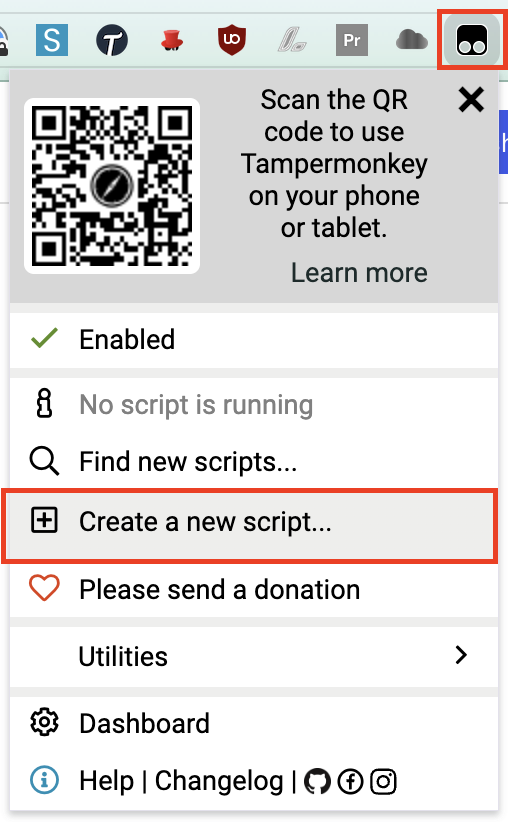
2] click the Tampermonkey icon and select “Create a new script…”

3] highlight the existing code in the <new userscript> window

4] replace the highlighted text by copying-and-pasting the code block below:

// ==UserScript==
// @name         Kill Google Sheets Tables sidebar
// @match        https://docs.google.com/spreadsheets/*
// ==/UserScript==
(function() {
    let interval = setInterval(() => {
        let sidebar = document.querySelector("div.building-blocks-sidebar > div > div > div#docs-tiled-sidebar-title");
        if (sidebar && sidebar.innerHTML === 'Tables') {
            document.querySelector("div.building-blocks-sidebar > div > div > div#docs-tiled-sidebar-title + div.docs-tiled-sidebar-close").click();
            clearInterval(interval);
        }
    }, 50);
})();

5] click “File | Save”

That’s it! The next time you open a new Google Sheet, you’ll see the “Tables” palette flicker and disappear.

props to Reddit user zoooooook’s solution

Pull URL/ID from a Google Sheet Cell

Q: “How do I get the Salesforce ID out of a hard-coded hyperlink in a Google Sheets cell?”

A: Here‘s the Apps Script function. More explanation below.

function GetURL(input){
  const sheet = SpreadsheetApp.getActiveSpreadsheet().getActiveSheet();
  const myFormula = SpreadsheetApp.getActiveRange().getFormula();
  const matches = (myFormula.indexOf("(") !== -1 && myFormula.indexOf(")") !== -1) ? myFormula.slice(myFormula.indexOf("(") + 1, myFormula.indexOf(")")) : undefined;
  const range = sheet.getRange(matches);
  // Extract the link URLs for each cell in the range
  const linkUrls = range.getRichTextValues().map(ia => ia.map(row => row.getLinkUrl()));
  // Return the link URLs
  return linkUrls;
}

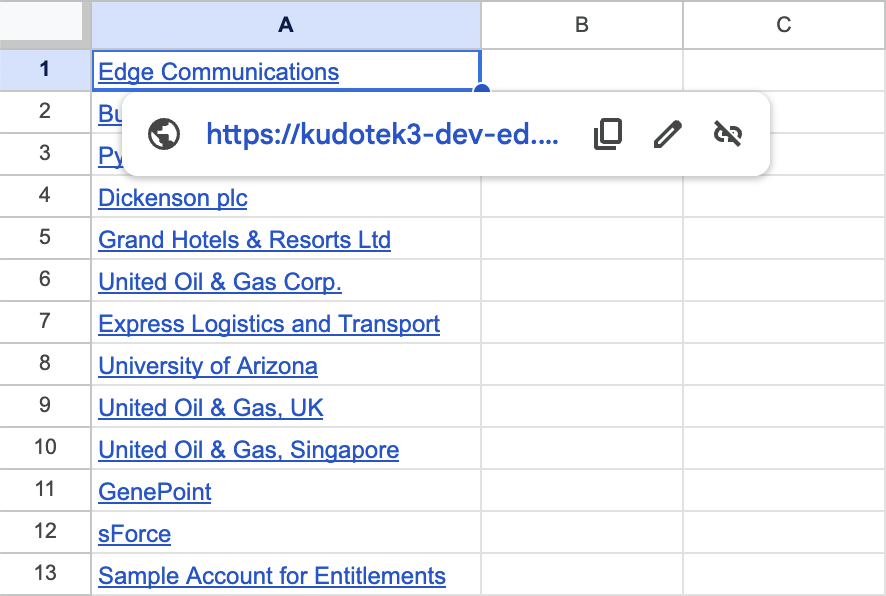
Let’s say you’ve pasted values from Salesforce into Google Sheets like the following. . .

column of hyperlinked Account Names, copied-and-pasted from Salesforce into Google Sheets

. . . and you need the Salesforce IDs behind those links.

You could get the URL from each cell, one at a time–but that‘s woefully inefficient.

The faster way is to define a custom GetURL() function you can use in the spreadsheet:

  1. click “Extensions | Apps Script” from the Google Sheets menu bar;
  2. highlight all text in the “Apps Script: Untitled Project” window that appears
  3. replace the highlighted text by copying-and-pasting the red code block above
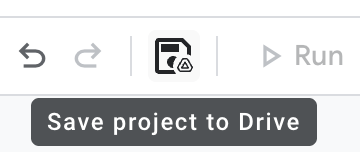
  4. click the “Save project to Drive” button (it looks like a floppy disk):

Congratulations! You now have a custom GetURL() function you can use in the spreadsheet, like this:

props to https://productivesheets.com/extract-url-from-hyperlink-google-sheets/

Two Great Jira Query Tricks

Q: “How can I find all the Jira tickets I touched in the last week?”

A: Three steps:

  1. Run a regular search in Jira.
  2. In the results screen, click Jira’s “Switch to JQL” link
    Screenshot of Jira showing the "Switch to JQL" link
  3. Once you’ve switched to JQL, run a query like the following:
    key IN updatedBy(ezra, -7d) ORDER BY key DESC
  • if your name isn’t Ezra, you probably want to modify the ezra part
  • if you want a timeframe other than the last 7 days, modify the -7d argument

Q: “How can I find all the Jira tickets in the current sprint?”

A: sprint IN currentSprints()

If, like me, you save queries and you don’t wanna constantly update the query to say sprint = 'Sprint 2' or sprint = 'Bugfix Sprint' or whatever, then sprint IN currentSprints() is your huckleberry

Pop Quiz, Hot Shot!

Q: Pop quiz! One of these Custom Activity Formula Fields is syntactically correct, and the other produces an error. Which is which?

Option 1:

Option 2:

A: Highlight to show answer: Option 2 is syntactically correct. I don’t know why. AccountId is a perfectly legitimate system field on both Event and Task!

Installing Data Loader on Mac

Q: Why doesn’t the installer for Data Loader on the Mac install automatically?

A: Nerd cred, I guess. It’s more badass to have to do manual things.

Anyway, if you’re on a Mac and you

  1. downloaded the latest installer from this site,
  2. double-clicked the downloaded Zip file with a name like dataloader_v62.0.2,
  3. opened the folder with a name like dataloader_v62.0.2,
  4. double-clicked the file named something like install.command, and
  5. got the error below. . .

. . . here’s what you should do:

1] control-click the folder with a name like dataloader_v62.0.2,
2] select “New Terminal at Folder” from the drop-down menu

3] copy the command below, paste it into the Terminal window, and press Return:

xattr -d com.apple.quarantine install.command

. . . and that should do it! The file named install.command has been unquarantined and should now run without further complaint.


props to this StackExchange post and this old Macworld forum post

Make Salesforce Usernames Always Match Email Addys

Q: “I have lots of Salesforce logins. How do I make my username always match my email address?”

A: If you use Gmail, learn the power of pluses and periods!

Gmail tolerates extra characters in the email address. Let’s take the arbitrary email address datanerd@gmail.com. Emailing any of the following addresses will reach that recipient:

In a nutshell:

  1. Gmail addresses tolerate a plus sign followed by any sequence of letters, numbers, periods, and underscores after your username and before the @ symbol.
  2. Gmail addresses tolerate periods anywhere before the @ symbol.

Armed with this knowledge, I make each of my usernames match its email address–way less mental strain that way!


Another awesome benefit of this feature is it enables easy searching of emails.

Let’s say I have an org called “NewKillerApp”. If I put +NewKillerApp in the username and email address I use for this org, searching on “+NewKillerApp” in my Gmail turns up all the emails specifically related to that org.

Here are the full details (. . . from a 2008 Google post)

Thanks to former coworker Luis Botero for reminding me of this cool feature!

Stop Watching Issues, Jira!

Q: How do I stop Jira automatically setting me as a watcher every time I create or contribute to an issue?

A: In any Jira screen,

1] click your Account menu in the upper right-hand corner and choose “Personal Settings“:

2] In Personal Settings, change “Watch your issues” to “Disabled” and click the “Save changes” button:

that’s it!


plucked from this Jira support page.