Wordle Counter: “Which Word Should I Play Next?”

Long story short: make a copy of this spreadsheet to speed up your Wordle-solving!


The gory details: If you obsess over Wordle like I do, you’ve probably run into the conundrum of

  • having narrowed the answer to a smallish set of words, but
  • being unsure which word to play next.

My friend Dave and I are convinced: the best approach is to list all the candidate words, count the number of times each letter appears in all the candidates, and play the word whose letters appears in the most candidates.

Not difficult, but time-consuming! Save yourself time by entering the words in the Wordle Counter, and letting it do the counting for you.

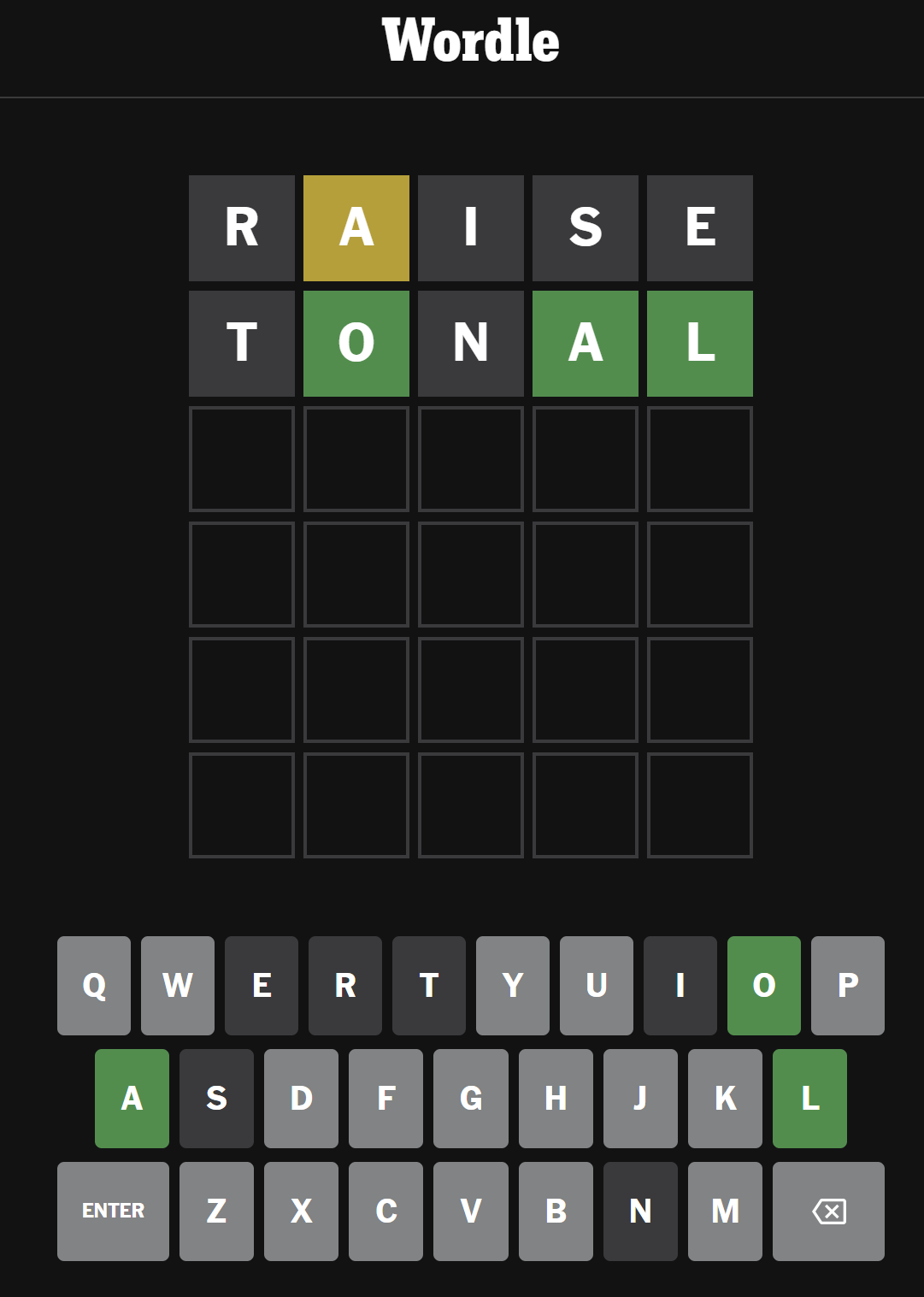
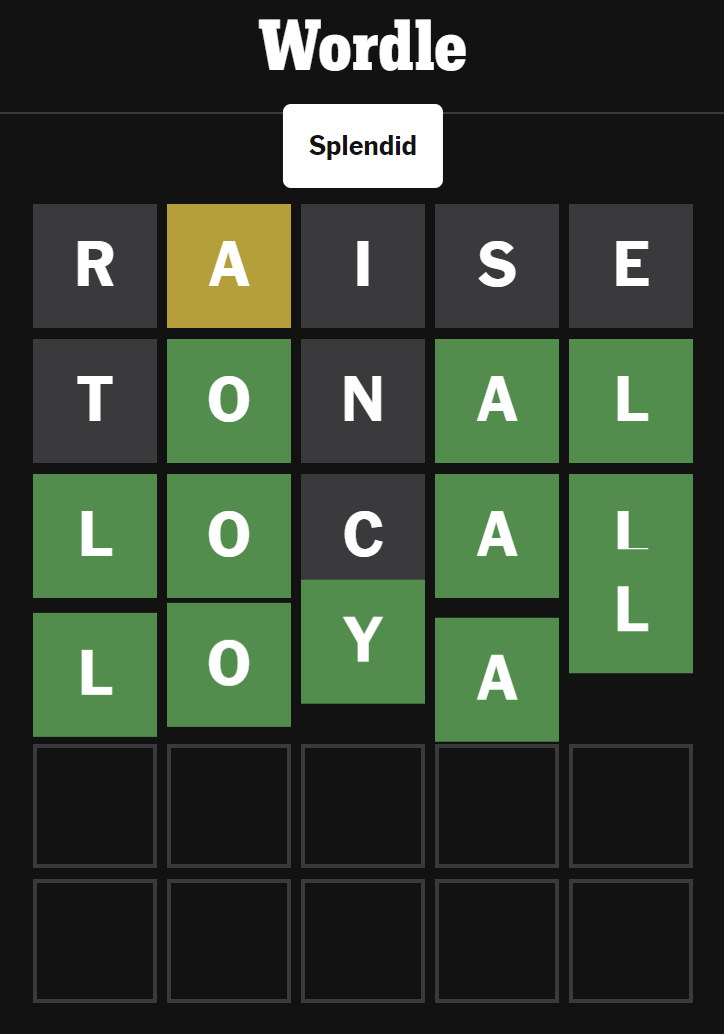
Example: today (September 26th, 2023), I was staring at this after two turns:1

I came up with five possible words:
FOCAL
LOCAL
LOYAL
MODAL
VOCAL

. . . but which one’s the best to play next?

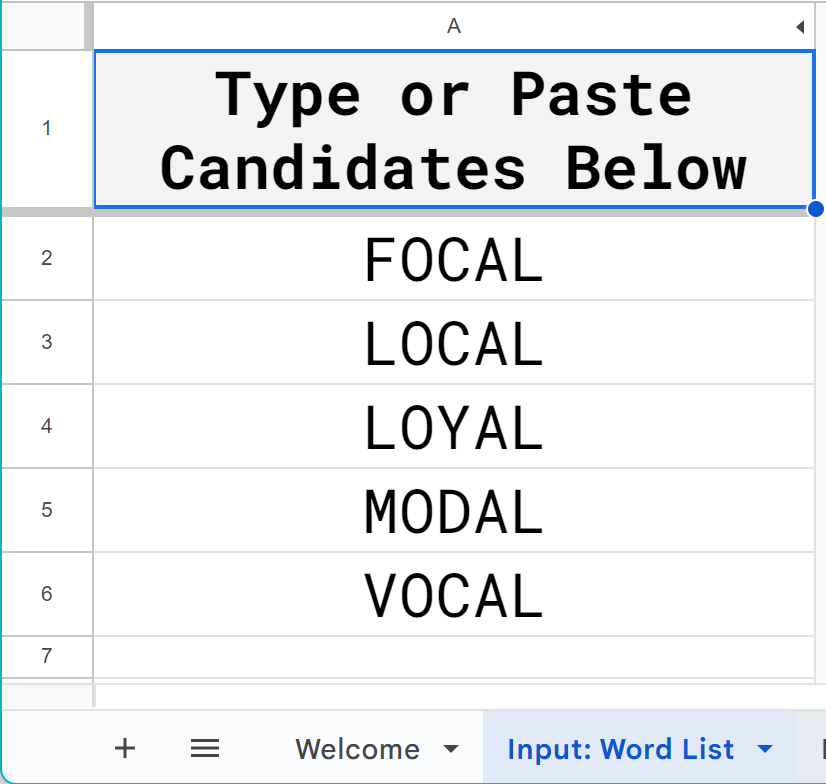
1] I pasted those five words into Wordle Counter’s “Input: Word List” tab:

2] then on the “Input: Parameters” tab I told Wordle Counter which letters I wanted to count (and activating the “Count by WORD?” setting prevents a duplicate letter from being double-counted within a single word):

And voila, Wordle Counter tells me how many times letters appear in those spots:

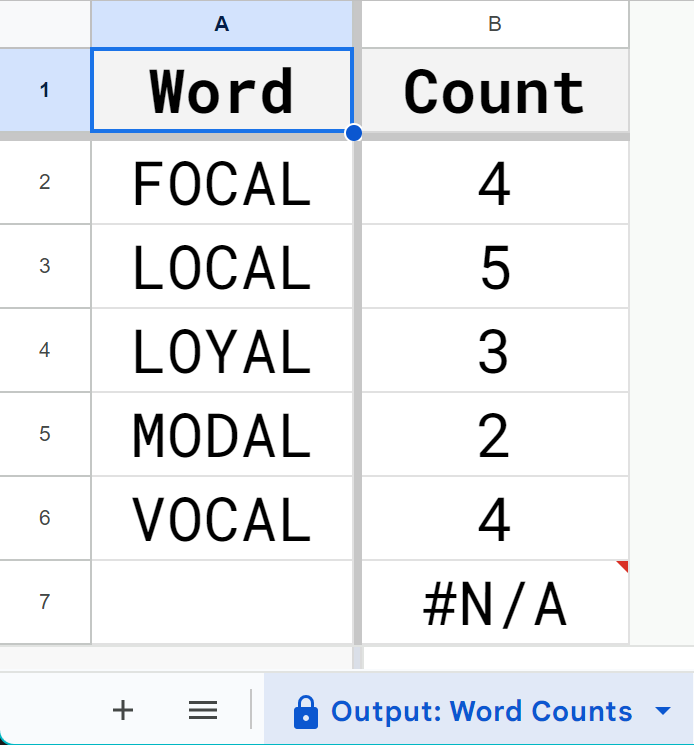
. . . and how many times each of those letters appears in my candidate words:

Armed with that information, I played the highest-freq word LOCAL and guaranteed getting the answer in two or fewer guesses:

try it out!2

  1. RAISE as my first play? Yup, I’m convinced, after looking at Wikipedia’s entry on letter frequencies (and sorting the table by descending order of letters in dictionary words), that RAISE is your best play. Come at me, bro. ↩︎
  2. I’m still tweaking it. I’m not sure it’s working right in every situation, but I’m really proud of some of the ARRAYFORMULA() logic. ↩︎

“How Worried Should I Be About My Salesforce Community’s Security?”

Q: “How worried should I be about my Salesforce Community’s security?”

A: Let’s say “more vigilant than you are right now”, ie, pretty worried.

  • This article gets at the problem: Salesforce makes it easy to accidentaly set up a Community that overshares data.

Salesforce, in weaselly corporate fashion, doesn’t shout this problem from the rooftops, but instead quietly pushes out Release Updates.

  • This article has some good commonsense fixes–let’s call it solution #1.
  • This article lists some more–let’s call it solution #2.

And OMG, I was astounded to learn that there’s a User Permission out there called “View All Custom Settings”–and, based on my quick experimenting, it overrides “API Enabled”. wtf!

Betteridge’s Law of Headlines Strikes Again!

Of the many Murphy’s Laws out there (this list has the advantage of being both lengthy and untouched since 2007), I’ve always had a soft spot for

So I got a dark chuckle applying Betteridge to this recent entry in Salesforce’s Developer Blog:

nuf ced!

Awesome Tools and Tips for Salesforce Admins

Q: “Where can I find that cool presentation of Awesome Tools and Tips for Salesforce Admins?”

A: Right here.

The tools I recommend:

plus more!

How the Hell Is Salesforce Computing Data Consumption?

Q: “How the Hell is Salesforce computing data consumption?”

A: Let’s start with the basics:

. . . but the short takeaway is “each record is assumed to take up 2 KB”.

This is kinda cool–a record can obviously take up a heckuva lot more than 2 KB. In my company’s org, the long text fields alone could consume more than 1.5 MB of storage for a single record.

There are a couple of weird wrinkles, like junction objects. . .

  • Campaign Members, Opportunity Splits, and Case Team Members DO count against storage.
  • Account and Opportunity Team Members DON’T.

Campaigns. . .

  • each Campaign counts for 8 KB of storage.

Historical Trending. . .

  • each Historical Trending record counts for 1 KB of storage.

and Email Messages’ actual size is computed in determining consumption.

If, like me, you wanted to try replicating Storage Usage’s “Storage” column in, say, a spreadsheet: wonder no more!

If you copy the four columns of the Storage Usage table into a Google Sheet, here’s the Google Sheets formula that will replicate Salesforce’s “Storage” column:

=IFS(A2="Email Messages",
        TEXT(B2,"#,##0"" recs"""),
     A2="Campaigns",
        IFS(B2*8<1024,TEXT(B2*8,"#,##0 ""KB"""),
            B2*8<1048576,TEXT(B2/1024*8,"#,##0.0 ""MB"""),
            B2*8<1073741824,TEXT(B2/1048576*8,"#,##0.0 ""GB""")),
     OR(A2="Campaign Members",NOT(ISERR(FIND("(Historical)",A2)))),
           IFS(B2<1024,TEXT(B2,"#,##0 ""KB"""),
               B2<1048576,TEXT(B2/1024,"#,##0.0 ""MB"""),
               B2<1073741824,TEXT(B2/1048576,"#,##0.0 ""GB""")),
     B2>0,IFS(B2*2<1024,TEXT(B2*2,"#,##0 ""KB"""),
               B2*2<1048576,TEXT(B2/1024*2,"#,##0.0 ""MB"""),
               B2*2<1073741824,TEXT(B2/1048576*2,"#,##0.0 ""GB""")),
     B2=0,"0 B")

Two notes:

  • this formula assumes “Record Type” was pasted into column A and “Record Count” was pasted into column B.
  • I can’t give you the consumption of Email Messages, alas–it depends on the actual size of the records, which couldn’t be broken down further without, say, downloading EmailMessage via a tool like Workbench or Data Loader.

If you just wanted to know how many bytes Salesforce claims you’re taking up:

=IFS(A2="Email Messages", TEXT(B2,"#,##0"" recs"""),
     A2="Campaigns", B2*1024*8,
     OR(A2="Campaign Members",NOT(ISERR(FIND("(Historical)",A2)))), B2*1024,
     A2<>"", B2*1024*2)

The same two notes from above apply to these formula as well.

If for some strange reason you only had the KBs, MBs, and GBs–and wanted to turn them into (approximate) bytes:

=IFS(RIGHT(C2, 2)="GB", VALUE(LEFT(C2, FIND(" ", C2)-1))*1024*1024*1024,
     RIGHT(C2, 2)="MB", VALUE(LEFT(C2, FIND(" ", C2)-1))*1024*1024,
     1=1, VALUE(LEFT(C2, FIND(" ", C2)-1))*1024)

Nice to know that Salesforce is computing its Kilobytes, Megabytes, and Gigabytes honestly, using 1024, 10242, and 10243, and not just slapping zeroes after 1024!

Most-Recently-Won Opportunity: Close Date, Amount, ID

Q: How can I see each Account’s most-recently-won Opportunity Close Date, Amount, and ID?

A: Roll-Up and Formula fields! (Yeah, you can do it with code, but let’s show off.)

Create a formula field on Opportunity that creates an encoded (“hashed“) version of each Opportunity’s Close Date and Amount:

  • Opportunity Field HASH Close Date & Amount (Number Formula Field):
      VALUE(TEXT(YEAR(CloseDate)) &
            LPAD(TEXT(MONTH(CloseDate)), 2, "0") &
            LPAD(TEXT(DAY(CloseDate)), 2, "0") &
            LPAD(TEXT(Amount), 10, "0"))

This field would show 200802290000000500 for an Opportunity that closed on February 29, 2008 for $500:

  • The first eight digits of the formula (20080229) are the Close Date in YYYYMMDD format, and 
  • the last ten digits (0000000500) are the Amount.

Then create these fields on Account:

  • Account Field HASH Latest Opty Won: CloseDate&Amount (Rollup Summary Field):
      MAX Opportunity.HASH Close Date & Amount
      CRITERIA: Won = True
  • Account Field Latest Opty Won: Amount (Number Formula Field):
      IF(HASH_Latest_Opty_Won_CloseDate_Amount__c > 0,
         VALUE(RIGHT(TEXT(HASH_Latest_Opty_Won_CloseDate_Amount__c), 10)),
         NULL)
  • Account Field Latest Opty Won: Close Date (Date Formula Field):
      IF(HASH_Latest_Opty_Won_CloseDate_Amount__c > 0,
         DATE(VALUE(MID(TEXT(HASH_Latest_Opty_Won_CloseDate_Amount__c), 1, 4)),
              VALUE(MID(TEXT(HASH_Latest_Opty_Won_CloseDate_Amount__c), 5, 2)),
              VALUE(MID(TEXT(HASH_Latest_Opty_Won_CloseDate_Amount__c), 7, 2))),
         NULL)

This principle can be used to roll all sorts of data up from child objects to parent objects.

One example: you want each Account’s highest-Stage Opportunity Close Date; replace the “Won Date & Amount” field described above with a field called “Stage & Close Date”:

  • Opportunity Field HASH Stage & Close Date (Number Formula Field):
      CASE(TEXT(StageName), 
           "Prospecting", 1,
           "Qualification", 2,
           "Needs Analysis", 3,
           "Value Proposition", 4,
           "Id. Decision Makers", 5,
           "Perception Analysis", 6,
           "Proposal/Price Quote", 7,
           "Negotiation/Review", 8,
           "Closed Won", 9,
           0) 
      * 100000000 +
      VALUE(TEXT(YEAR(CloseDate)) &
            LPAD(TEXT(MONTH(CloseDate)),2,"0") &
            LPAD(TEXT(DAY(CloseDate)),2,"0"))
  • Account Field HASH Highest Opty: Stage&CloseDate (Rollup Summary Field):
      MAX Opportunity.HASH Stage & Close Date
  • Account Field Highest Opty: Stage (Text Formula Field):
      IF(HASH_Highest_Opty_Stage_CloseDate__c > 0,
         CASE(VALUE(LEFT(TEXT(HASH_Highest_Opty_Stage_CloseDate__c), 1)),
              1, "Prospecting",
              2, "Qualification",
              3, "Needs Analysis",
              4, "Value Proposition",
              5, "Id. Decision Makers",
              6, "Perception Analysis",
              7, "Proposal/Price Quote",
              8, "Negotiation/Review",
              9, "Closed Won",
              "#Error!#"),
         NULL)
  • Account Field Highest Opty: Close Date (Date Formula Field):
      DATE(VALUE(MID(TEXT(HASH_Highest_Opty_Stage_CloseDate__c), 2, 4)),
           VALUE(MID(TEXT(HASH_Highest_Opty_Stage_CloseDate__c), 6, 2)),
           VALUE(MID(TEXT(HASH_Highest_Opty_Stage_CloseDate__c), 8, 2)))

A different, crazier example: you want to roll up the Most-Recently-Won Opportunity ID.

In this case, I’m encoding the date as the first five digits of the formula, representing days elapsed since January 1, 1970. This will work for all dates between May 19, 1997 through October 16, 2243.

The ID is encoded using a one-digit number for characters 4-9 of the Opportunity ID (in most cases, there will only be a few different combinations).

  • Opportunity Field HASH Close Date & Opty ID (Number Formula Field):
    You’ll need to change the second line to reflect characters 4-9 of the Opportunity IDs in your org.
    If there’s more than two combinations for characters 4-9 of the Opportunity IDs in your org, you’ll need to nest another IF() for each additional combination:
      (CloseDate - DATE(1970, 1, 1)) * 10000000000000 + 
      IF(MID(Id, 4, 6) = "130000", 0, IF(MID(Id, 4, 6) = "6A0000", 1, 9)) * 1000000000000 + 
      FIND(MID(Id, 10, 1), "ABCDEFGHIJKLMNOPQRSTUVWXYZabcdefghijklmnopqrstuvwxyz0123456789") * 10000000000 + 
      FIND(MID(Id, 11, 1), "ABCDEFGHIJKLMNOPQRSTUVWXYZabcdefghijklmnopqrstuvwxyz0123456789") * 100000000 + 
      FIND(MID(Id, 12, 1), "ABCDEFGHIJKLMNOPQRSTUVWXYZabcdefghijklmnopqrstuvwxyz0123456789") * 1000000 + 
      FIND(MID(Id, 13, 1), "ABCDEFGHIJKLMNOPQRSTUVWXYZabcdefghijklmnopqrstuvwxyz0123456789") * 10000 + 
      FIND(MID(Id, 14, 1), "ABCDEFGHIJKLMNOPQRSTUVWXYZabcdefghijklmnopqrstuvwxyz0123456789") * 100 + 
      FIND(MID(Id, 15, 1), "ABCDEFGHIJKLMNOPQRSTUVWXYZabcdefghijklmnopqrstuvwxyz0123456789") * 1
  • Account Field HASH Latest Opty Won: CloseDate&OptyID (Rollup Summary Field):
      MAX Opportunity.HASH Close Date & Opty ID
      CRITERIA: Won = True
  • Account Field HASH Latest Opty Won: OptyID (Text Formula Field):
      MID(TEXT(HASH_Latest_Opty_Won_CloseDate_OptyID__c), 6, 13)
  • Account Field Latest Opty Won: Hyperlink (Text Formula Field):
    As with the Opportunity field above, you’ll need to change the fourth line to reflect characters 4-9 of the Opportunity IDs in your org.
    If there’s more than two combinations for characters 4-9 of the Opportunity IDs in your org, you’ll need to nest another IF() for each additional combination:
      IF(HASH_Latest_Opty_Won_OptyID__c = "",
         "",
         HYPERLINK(
                   "/006" & 
                   CASE(MID(HASH_Latest_Opty_Won_OptyID__c, 1, 1), "0", "130000", "1", "6A0000", "XXXXXX") &
                   MID("ABCDEFGHIJKLMNOPQRSTUVWXYZabcdefghijklmnopqrstuvwxyz0123456789", VALUE(MID(HASH_Latest_Opty_Won_OptyID__c, 2, 2)), 1) &
                   MID("ABCDEFGHIJKLMNOPQRSTUVWXYZabcdefghijklmnopqrstuvwxyz0123456789", VALUE(MID(HASH_Latest_Opty_Won_OptyID__c, 4, 2)), 1) &
                   MID("ABCDEFGHIJKLMNOPQRSTUVWXYZabcdefghijklmnopqrstuvwxyz0123456789", VALUE(MID(HASH_Latest_Opty_Won_OptyID__c, 6, 2)), 1) &
                   MID("ABCDEFGHIJKLMNOPQRSTUVWXYZabcdefghijklmnopqrstuvwxyz0123456789", VALUE(MID(HASH_Latest_Opty_Won_OptyID__c, 8, 2)), 1) &
                   MID("ABCDEFGHIJKLMNOPQRSTUVWXYZabcdefghijklmnopqrstuvwxyz0123456789", VALUE(MID(HASH_Latest_Opty_Won_OptyID__c, 10, 2)), 1) &
                   MID("ABCDEFGHIJKLMNOPQRSTUVWXYZabcdefghijklmnopqrstuvwxyz0123456789", VALUE(MID(HASH_Latest_Opty_Won_OptyID__c, 12, 2)), 1),
                   Name & "'s Latest Won Opty"))

Apex Class Dependencies

Q: “How do I determine which Apex Classes each Apex Class depends on?”

A: Tooling API, baby. Here’re the steps I run:

  1. Open Developer Console
  2. Click the “Query Editor” tab of the Console
  3. Activate the “Use Tooling API” checkbox at the bottom of the screen
  4. Paste the following query into the Query Editor:
    SELECT MetadataComponentId, MetadataComponentName, MetadataComponentNamespace, MetadataComponentType, RefMetadataComponentId, RefMetadataComponentName, RefMetadataComponentNamespace, RefMetadataComponentType
    FROM MetadataComponentDependency
    WHERE MetadataComponentType='ApexClass'
    AND RefMetadataComponentType='ApexClass'
  5. Use your favorite table-copying utility (I use Table Capture) to copy the results into your favorite spreadsheet

And here’s the first five rows of what I got:


Random Notes:

  • Querying the Tooling API is always weird. If I run the above query without a WHERE clause, I get thousands of lines back. . . and none of them has a MetadataComponentType or RefMetadataComponentType of ApexClass. Shouldn’t I get all rows? Apparently not, wtf
  • Here’s documentation for the Tooling API’s MetadataComponentDependency object
  • Why didn’t I hide the first three characters of the returned IDs? Because 01p is the prefix of all Apex Classes everywhere, always. Daniel Ballinger’s Fish of Prey list has maintained the list of standard Salesforce ID prefixes for over 11 years!

Useful Takeaways from Spring ’23 (Part 1 in a Series, Hopefully)

1] Hey, the new Migrate Process to Flow utility works!
It still has a list of Things It Won’t Do, but at least at first blush, it took one hairy legacy Process and converted it to Flow (apparently) correctly. hm!

2] Hell yah, relative values have come to Reporting! Check it out:

Of course the documentation says it’s only available in Lightning, but who ever totally trusted the documentation.

Further updates as events warrant!

Convert 15-Character to 18-Character IDs in Spreadsheets without Code

Q: “How do I convert a 15-character Salesforce ID into an 18-character ID in a spreadsheet like Excel or Google Sheets, without code?”

A: Use the formula below. This formula assumes your 15-character ID is in cell A2.

=A2 & 
MID( 
    "ABCDEFGHIJKLMNOPQRSTUVWXYZ012345", 
    AND(CODE(MID(A2,5,1))>64,CODE(MID(A2,5,1))<91) * 16 + 
    AND(CODE(MID(A2,4,1))>64,CODE(MID(A2,4,1))<91) * 8 + 
    AND(CODE(MID(A2,3,1))>64,CODE(MID(A2,3,1))<91) * 4 + 
    AND(CODE(MID(A2,2,1))>64,CODE(MID(A2,2,1))<91) * 2 + 
    AND(CODE(MID(A2,1,1))>64,CODE(MID(A2,1,1))<91) * 1 + 1, 
    1) & 
MID( 
    "ABCDEFGHIJKLMNOPQRSTUVWXYZ012345", 
    AND(CODE(MID(A2,10,1))>64,CODE(MID(A2,10,1))<91) * 16 + 
    AND(CODE(MID(A2,9,1))>64,CODE(MID(A2,9,1))<91) * 8 + 
    AND(CODE(MID(A2,8,1))>64,CODE(MID(A2,8,1))<91) * 4 + 
    AND(CODE(MID(A2,7,1))>64,CODE(MID(A2,7,1))<91) * 2 + 
    AND(CODE(MID(A2,6,1))>64,CODE(MID(A2,6,1))<91) * 1 + 1, 
    1) & 
MID( 
    "ABCDEFGHIJKLMNOPQRSTUVWXYZ012345", 
    AND(CODE(MID(A2,15,1))>64,CODE(MID(A2,15,1))<91) * 16 + 
    AND(CODE(MID(A2,14,1))>64,CODE(MID(A2,14,1))<91) * 8 + 
    AND(CODE(MID(A2,13,1))>64,CODE(MID(A2,13,1))<91) * 4 + 
    AND(CODE(MID(A2,12,1))>64,CODE(MID(A2,12,1))<91) * 2 + 
    AND(CODE(MID(A2,11,1))>64,CODE(MID(A2,11,1))<91) * 1 + 1, 
    1)

If you’re curious how this logic works, you can check out Alan Shanahan’s wonderful original post about it from 2010.

And if for some reason you’re allergic to the Salesforce formula function CASESAFEID(), you can use the logic I created in this blog post from 2011.

And while I’m at it, I recommend everyone makes a copy of this wonderful Field Utilities for Salesforce Administrators, Architects, and Developers spreadsheet for tools that can help you

  • change 15-character IDs to 18-character IDs
  • convert Field UI Labels (with characters and spaces) into Field API Names (with underscores)
  • generate XML for creating new fields and
  • fix the capitalization of broken 18-character IDs