Q: “How do I get the Salesforce ID out of a hard-coded hyperlink in a Google Sheets cell?”
A: Here‘s the Apps Script function. More explanation below.
function GetURL(input){
  const sheet = SpreadsheetApp.getActiveSpreadsheet().getActiveSheet();
  const myFormula = SpreadsheetApp.getActiveRange().getFormula();
  const matches = (myFormula.indexOf("(") !== -1 && myFormula.indexOf(")") !== -1) ? myFormula.slice(myFormula.indexOf("(") + 1, myFormula.indexOf(")")) : undefined;
  const range = sheet.getRange(matches);
  // Extract the link URLs for each cell in the range
  const linkUrls = range.getRichTextValues().map(ia => ia.map(row => row.getLinkUrl()));
  // Return the link URLs
  return linkUrls;
}
Let’s say you’ve pasted values from Salesforce into Google Sheets like the following. . .
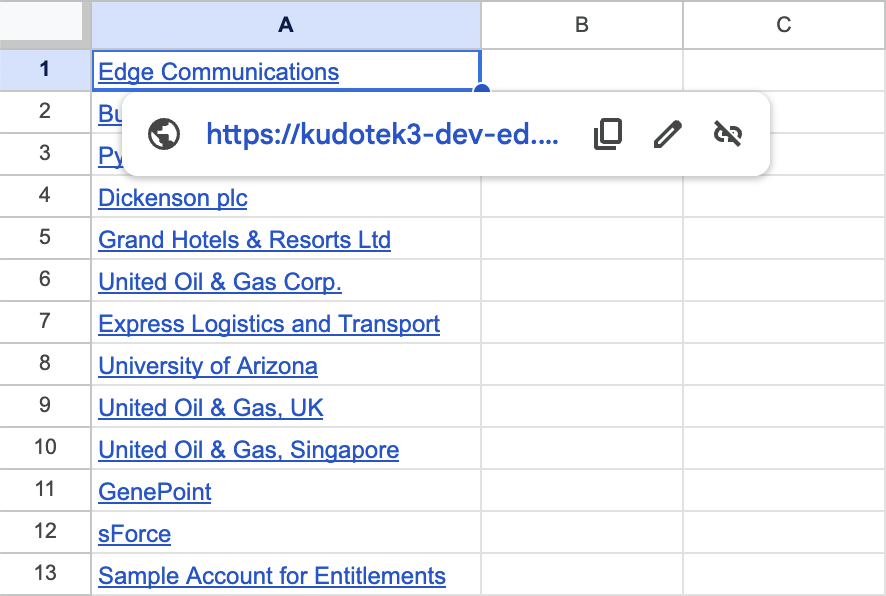
. . . and you need the Salesforce IDs behind those links.
You could get the URL from each cell, one at a time–but that‘s woefully inefficient.
The faster way is to define a custom GetURL() function you can use in the spreadsheet:
- click “Extensions | Apps Script” from the Google Sheets menu bar;
- highlight all text in the “Apps Script: Untitled Project” window that appears
- replace the highlighted text by copying-and-pasting the
red code blockabove - click the “Save project to Drive” button (it looks like a floppy disk):
Congratulations! You now have a custom GetURL() function you can use in the spreadsheet, like this:

props to https://productivesheets.com/extract-url-from-hyperlink-google-sheets/
 Kudotek v2.0